
GDR 6460 VCR SILVER - VCR GRUNDIG - Free user manual and instructions
Find the device manual for free GDR 6460 VCR SILVER GRUNDIG in PDF.


| Product type | VHS VCR |
| Brand | GRUNDIG |
| Model | GDR 6460 VCR SILVER |
| Color | Silver |
| Dimensions (W × H × D) | 430 × 90 × 280 mm |
| Weight | 3.5 kg |
| Power supply | 220-240 V, 50 Hz |
| Power consumption | 15 W during operation |
| Tape player | VHS (Video Home System) |
| Recording formats | Standard and long-play VHS |
| Main functions | Playback, recording, pause, fast forward/rewind, timer recording |
| Connectivity | SCART (RGB), RF antenna, audio/video output |
| Built-in tuner | Yes, for analog channel reception |
| Programming | Built-in clock, timer recording for up to 8 events |
| Remote control | Included (infrared) |
| Maintenance and cleaning | Clean heads with cleaning cassette; dust the cabinet with a soft cloth |
| Safety | Overvoltage protection; do not expose to humidity |
| Spare parts and repairability | Available through authorized GRUNDIG dealers |
| General information | For domestic use; operating temperature 5 to 35°C |
Frequently Asked Questions - GDR 6460 VCR SILVER GRUNDIG
User questions about GDR 6460 VCR SILVER GRUNDIG
0 question about this device. Answer the ones you know or ask your own.
Ask a new question about this device
Download the instructions for your VCR in PDF format for free! Find your manual GDR 6460 VCR SILVER - GRUNDIG and take your electronic device back in hand. On this page are published all the documents necessary for the use of your device. GDR 6460 VCR SILVER by GRUNDIG.
USER MANUAL GDR 6460 VCR SILVER GRUNDIG
GDR 6460 VCR DVD recorder
Special features of your DVD/VCR recorder
Disc formats
Packing contents
Set-up and safety
Overview
The front of the DVD/VCR recorder
The displays on the DVD/VCR recorder
The back of the DVD/VCR recorder
The remote control
Connection and preparation
Connecting a rooftop antenna or cable feed
Connecting a television or flat screen
Connecting an audio system with analogue two-channel stereo sound
Connecting a multi-channel amplifier or digital two-channel audio system
Connecting the power cord
Inserting batteries in the remote control
Initial setup
Switching on the DVD/VCR recorder
Initial setup
Selecting the screen format of your television set
Setting the signal type for the video output socket
Before playback
Preparation
Inserting a disc
Removing the disc
Playback
DVD playback
DVD+RW/+R playback
S-VCD/VCD playback
MP3 CD playback
Picture data CD playback
Simultaneous playback of JPEG data and MP3 data
Audio CD playback
Playback convenience functions
Selecting titles and chapters
Selecting functions with the playback menu
Interrupting and resuming playback
Frame search
Slow motion forward
Frame-by-frame playback
Selecting camera angles for scenes
Enlarging and moving the screen section (zoom)
Switching the dubbed language or the audio format
Selecting and displaying subtitles
Repeating a chapter, a title or a disc
Repeating a selected section (A-B Repeat)
CONTENTS
34-35
34
34
34
34
35
35
35
35
36-37
36
36
36
36
37
37
38-39
38
38
39
39
39
40-44
40-41
42-43
44
45-46
45
46
47-54
47-48
49
50
50
51
52
52
53
54
54
55-56
55
56
57-58
57
58
Playback of a video cassette
Preparation
Basic playback functions
Eliminating picture interference (unwanted lines)
Freeze-frame
Frame search
Slow motion forward
Fast forward/rewind a cassette
Setting search functions for the VCR unit
Recordings
Recording options
Suitable discs for recording
Unsuitable discs
Initialising discs
Recording quality and time of the discs
Recording duration of the cassette
One-touch recording (OTR)
Preparing for recording
Manually recording television programs from the antenna or the cable feed
Manually recording television programs from the satellite receiver
Finalising a disc (DVD+R)
Error messages
Delayed recording
Programming recording by entering the ShowView number
Programming recording by entering the data for the television programme
Checking, editing and deleting recording information
Copying functions
Copying from a disc to a video cassette
Copying from a video cassette to disc
Managing recording data
Editing titles
Editing the names of recordings
Deleting titles (recordings) from the disc
Overwriting titles
Entering the name of the disc
Deleting the content of the disc (DVD+RW)
Locking a disc
Completing a title alteration (DVD+RW only)
Finalising a disc (DVD+R only)
Calling up disc information
Copying
Connection and preparation
Recording from external devices
Operation with a decoder
Connection and preparation
Recording pay TV programmes
CONTENTS
59-60
59
60
61
62-63
64-65
64
65
66-70
66
66
67
68
68
69
69
70
70
70
71-73
71
71
72
73
73
Parental lock
Authorising the content of a DVD
Changing the access code (password)
Audio settings
Language settings
Recording settings
Recording settings
VPS/PDC controller for timer recordings
Special settings
Tuning television channels automatically
Tuning television channels manually
Sorting television stations
Deleting television stations
Entering station names
Automatically adopting television stations
Setting the time automatically
Setting the time and date
Resetting the DVD/VCR recorder to its original condition
Calling up system information
Information
Technical data
General instructions for laser devices
Rectifying minor problems
Cleaning discs
Software information
GDR 6460 VCR DVD/VCR REORDER
Special features of your DVD/VCR recorder






Your DVD/VCR recorder provides you with perfect video recording and playback in studio quality.
It also provides superb cinema-quality audio playback - in stereo or with digital multi-channel sound - depending on the type of disc and audio system or stereo television.
Other features of DVD video include the choice of audio channel and language, choice of subtitle language, and various camera recording angles. Your DVD/VCR recorder is suitable for DVDs with regional code 2.
In addition to DVDs it can play MP3 CDs, video CDs, S Video CDs, JPEG encoded (photo) CDs, KODAK picture CDs and audio CDs.
Your DVD/VCR recorder can make copies from DVD+RW and DVD+R onto video cassettes and from video cassette onto DVD+RW and DVD+R. When making copies please ensure that you do not infringe the copyright of third parties.
Disc formats
DVD+RWs and DVD+Rs are suitable for recording and playback.
DVD video, DVD-R, DVD-RW, audio CD, video CD, Super Video CD, CD-R and CD-RW can all be used for playback.
Due to the difference in quality of the recording media and the quality of the recording itself, it can occasionally happen that some recorded DVDs or CDs cannot be read. This does not indicate a malfunction on the part of the DVD/VCR recorder.
Recordings you make on DVD+Rs must be finalised.
When MP3 CDs are played back, individual tracks or pictures may be skipped or incorrectly played back. This can be due to the disc configuration, the encoder software or the hardware used for the recording.
Audio CDs (CDDA) meet the appropriate specification and bear the corresponding logo. Copy-protected CDs do not meet this specification and do not bear the corresponding logo. These CDs can cause playback errors.

GDR 6460 VCR DVD/VCR RECORDER
Packing contents
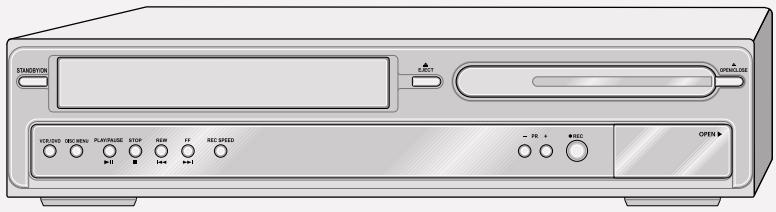
DVD Recorder GDR 6460
2 Remote control
3 2 Batteries, 1.5V , type AAA
4 DVD+RW
5 Antenna cable
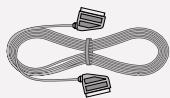
6 EURO-AV cable
7 Operating manual
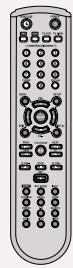
2

3

4
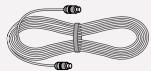
5
7
1
SETUP AND SAFETY
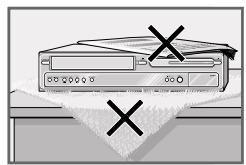
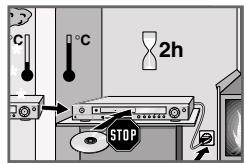
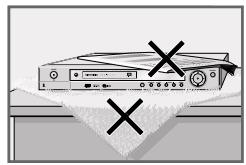
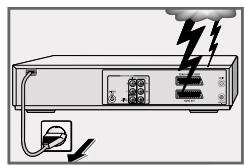

Please note the following information when setting up your DVD/VCR recorder:
This DVD/VCR recorder is designed to record and play back video and audio signals.
Any other use is expressly prohibited.
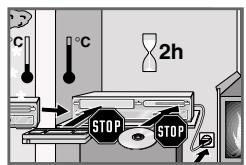
If the DVD/VCR recorder is subjected to a sudden change in temperature, for example if it is brought in from the cold to a warm room, connect it to the mains supply and let it stand for at least two hours before you insert a disc or cassette.
The DVD/VCR recorder is designed for use in dry rooms. If you do use it in the open, please ensure that it is protected from moisture, such as rain or water splashes.
Place the DVD/VCR recorder on a hard, level surface. Do not place any objects such as newspapers on the DVD/VCR recorder, or a tablecloth or other similar item underneath it.
Do not place the DVD/VCR recorder directly on top of an AV receiver or a subwoofer. The laser optics are sensitive to temperature and shocks.
Do not place the DVD/VCR recorder close to heating units or in direct sunlight, as this will impair cooling.
Do not insert foreign objects in the disc compartment or the cassette compartment of the DVD/VCR recorder.
Never open the DVD/VCR recorder casing under any circumstances. No warranty claims are accepted for damage resulting from improper handling.
Do not place any vessels filled with liquid, such as vases, on the DVD/VCR recorder, as they may spill liquid, thus presenting a safety risk.
Thunderstorms are a danger to all electrical devices. Even if the DVD/VCR recorder is switched off, it can be damaged by a lightning strike to the mains. Always disconnect the mains and antenna plugs during a storm.
If the DVD/VCR recorder fails to read a DVD or CD properly, clean the disc with a soft cloth. Wipe the disc from the centre outwards. Do not use cleaning CDs to clean the laser optics. This can damage the optics.
Always keep the disc compartment closed to prevent dust from collecting on the laser optics.
This DVD/VCR recorder successfully combines technology and environmental friendliness in its overall design. Only environmentally-friendly, high-quality materials have been used. The batteries included contain no mercury or cadmium.
The front of the DVD/VCR recorder
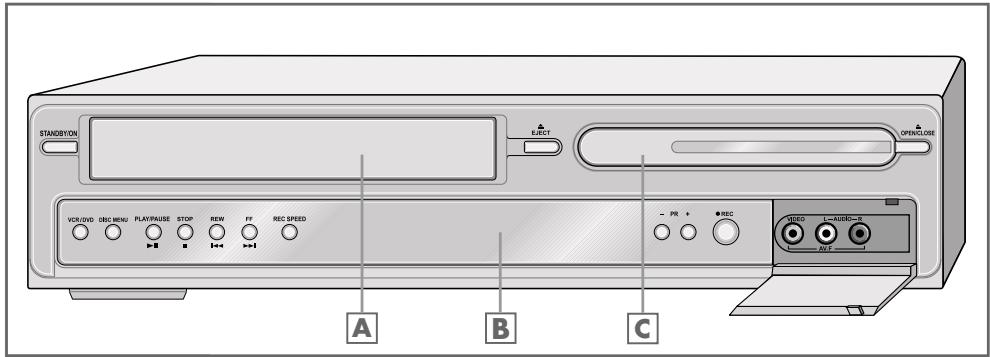
STANDBY/ON Switches the DVD/VCR recorder on from stand-by mode and off again.
A Cassette compartment.
B Display.
EJECT Ejects a video cassette.
C Compartment for CD media.
OPEN/CLOSE Opens and closes the disc compartment.
VCR/DVD Switches the buttons on the device between VCR operation and DVD operation.
DISC MENU Opens the disc menu of a DVD during playback.
PLAY/PAUSE Begins the playback of the CD or video cassette.
During playback, freeze frame and frame-by-frame playback for DVD+RW/DVD+Rs, DVDs, video CDs and video cassettes.
Pause for MP3 CDs, JPEG CDs, KODAK Picture CDs and audio CDs.
During recording, recording pause for discs and video cassettes.
STOP Ends playback and recording.
REW FF Selects the previous/next title or section of the disc during playback.
Selects picture search during playback of a video cassette. Rewinds or fast forwards the video cassette when the device is stopped.
REC SPEED Selects recording speed.
- PR + Select television stations and station sources, - up + down.
REC
Starts recording on the disc or video tape and for entering the switch-off time (in 15 minute intervals in disc mode or 30 minute intervals in VCR mode).
AV.FVIDEO
Video/ audio input sockets for connecting to a camcorder.
LAUDIO R
The displays on the DVD/VCR recorder

VCR The buttons on the device and the remote control are switched to VCR operation.
Video cassette inserted.
Recording on video cassette.
Timer recording on video cassette.
SLP EP HQ Recording quality
STEREO Stereo or two-channel sound transmission.
HIFI Recording or playback of a HiFi audio broadcast.
TV Glows when a video/ audio signal is present at the EURO-AV 1 socket.
REPEAT ALL A-B Repeat functions activated

DVD/VCR recorder function blocked
P.Scan Progressive Scan video output signal selected.
SVCD DVD Displays the selected disc type.
±RW MP3
dt
Information on the type of audio signal
DIGITAL
Recording on disc.
Timer recording on disc.
DVD The buttons on the device and the remote control are switched to disc operation.
0000000 Alphanumeric display for various information such as the title, chapter, playing time and disc name.
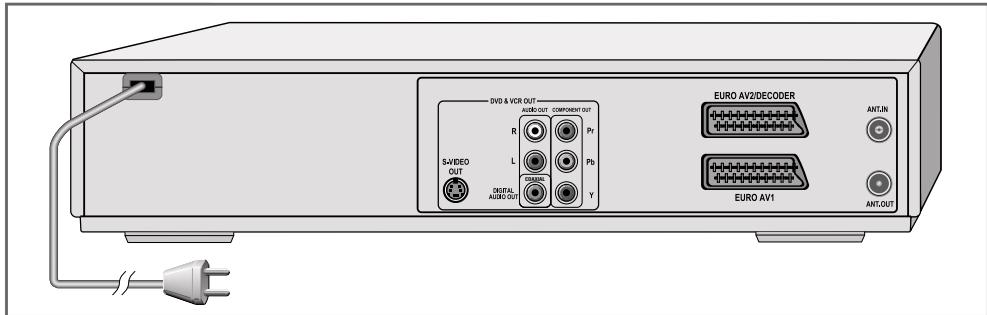
The back of the DVD/VCR recorder
AC 200-240V~
Mains cable.
DVD & VCR OUT
S-VIDEO OUT
Video output socket for connecting a television or AV receiver with an S-VIDEO socket.
AUDIO OUT R L
Audio output sockets (left/right analogue channel) for connecting an audio system.
DIGITAL AUDIO OUT
Sound output socket (coaxial) for PCM/Dolby digital/DTS signals, For connecting a multi-channel digital audio/video amplifier or AV receiver.
COMPONENT OUT
Pr Pb Y
Video output socket for connecting a television, flat screen or projector (YUV standard).
VIDEO OUT
Video output socket for connecting a television or AV receiver with a cinch socket.
ANT. IN
Antenna input socket (for the rooftop antenna
ANT. OUT
Antenna output jack (to the television).
EURO AV2/DECODER
Euro/AV (Scart) socket (input) for an external device.
EURO AV1
Euro-AV (Scart) socket (input/output) for the television.
Caution:
Do not connect any devices while the DVD/VCR recorder is switched on. Switch off the other devices as well before connecting them.
Never touch the inside of the sockets and plugs of the connecting cables. Electrostatic discharge can damage the DVD/VCR recorder.
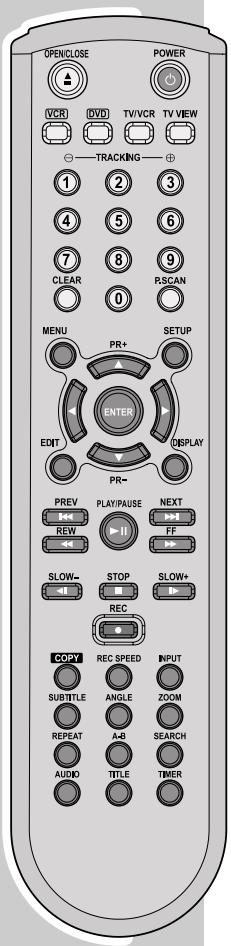
The remote control
POWER Switches the DVD/VCR recorder on from stand-by mode and off again.
The red indicator on the DVD/VCR recorder lights up in stand-by mode.
OPEN/CLOSE Opens and closes the disc compartment and ejects a video cassette.
VCR Switches the remote control to VCR mode.
DVD Switches the remote control to disc mode.
TV/VCR Switches from AV channel of the television to the television station.
TV VIEW In MP3/JPEG mode, switches to the television picture.
1 ... 0 Number buttons for various entries.
»O» Selects the various AV channels.
- TRACKING + »1« and »3« set the track position for VCR playback (tracking).
CLEAR Resets the cassette counter to 0 in VCR mode. Deletes a programmed timer position.
P.SCAN Switches the video output between interlace and progressive (press for longer than 3 seconds).
MENU Opens the disc menu of a DVD during playback.
SETUP Opens and closes the installation menu of the DVD/VCR recorder.
Select various functions in the menus.
▲PR+▼PR- Select television stations, PR + up, PR - down
ENTER Confirms selected functions in the menus.
DISPLAY Displays various information on the television screen during playback, such as the title or chapter number and playing time.
PREV | Selects the previous/next title or section
NEXT | title/section.
REW Switch to forwards/backwards frame search
FF at various speeds during playback.
Rewinds or fast forwards the video cassette when the device is stopped.
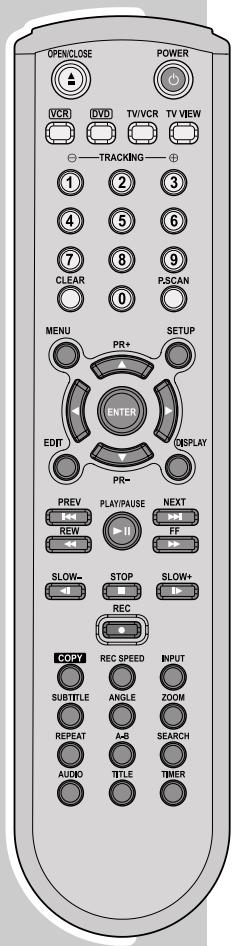
OVERVIEW
Starts playback.
Freeze frame for DVDs, video CDs and video cassettes.
Pause for audio CDs and MP3 CDs.
Switches the freeze frame forwards step-by-step.
SLOW - Switches to slow motion during playback* in SLOW + various speeds.
STOP Interrupts all drive functions.
REC 1 Starts the recording and enters the switch-off time (in 30 minute steps).
COPY Activates the copying function from DVD to VCR or from VCR to DVD.
REC SPEED Selects the recording quality.
INPUT Selects input sources.
SUBTITLE For selecting and displaying subtitles* of the DVD during playback.
ANGLE Selects various camera angles* for certain scenes or passages on the DVD during playback.
ZOOM Zooms in on scenes* during playback.
REPEAT Selects various repeat functions.
A-B For marking sections from DVDs and video CDs and titles or tracks on audio CDs, MP3 CDs or picture CDs for the repeat function.
SEARCH Selects a search by title, chapter or time.
AUDIO Switches between the original and the dubbed language* during DVD playback.
Switches between the various sound formats.
TITLE Calls up the DVD title menu* during playback.
TIMER Selects the timer list.
CONNECTION AND PREPARATION
Connecting a rooftop antenna or cable feed
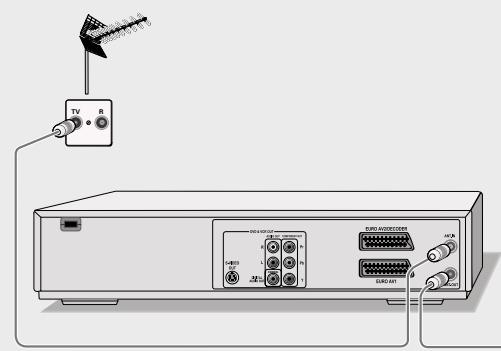
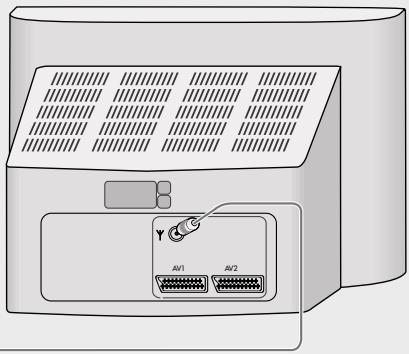
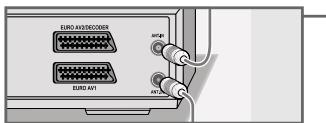
Plug the cable of the rooftop antenna or cable feed into the antenna socket ANT. IN on the DVD/VCR recorder.
2 Plug the antenna cable supplied into the ANT. OUT socket on the DVD/VCR recorder and the antenna socket on the television set or flat screen.
Connecting a television or flat screen
You have three options, depending on the sockets you have on your television or flat screen:
- For the best picture quality, make the connection at the EURO-AV socket using a fully assigned EURO-AV cable.
- Connection via the cinch sockets Y, Pb and Pr (picture signals) and the AUDIO OUT cinch sockets (sound signals).
This connection (Progressive Scan) can also be used for projectors.
- The standard connection for many devices, and one which provides good quality, is via the S-VIDEO OUT socket and the AUDIO OUT cinch sockets.
Note:
Connect the DVD/VCR recorder directly to the television or flat screen. If you connect a video recorder in between, the DVD/VCR recorder's copy protection may impair the picture quality.
CONNECTION AND PREPARATION
Connecting with a cinch cable (progressive scan)
Caution:
This connection transmits video signals at a high frequency range. Before you first switch on the device, please check whether your television, flat screen or projector is suitable for this use.
GRUNDIG accepts no liability for damage resulting from negligent usage.
Notes:
If you connect the DVD/VCR recorder using the Pr , Pb and Y sockets, you can switch to progressive scan using the P.SCAN button. You must first set the EURO-AV output to "YUV", as described on page 21.
Depending on the model of television, flat screen or projector, you have to activate the relevant input sockets on the device.
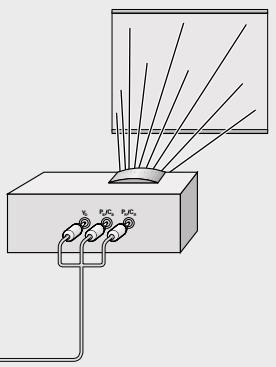
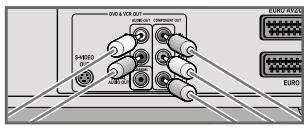
1 Plug a standard cinch cable into the «Pr», «Pb» and «Y» sockets of the DVD/VCR recorder and in the corresponding sockets (e.g. VIDEO IN or COMPONENT Y P_B / C_B P_R / C_R ) of the television, flat screen of projector.
2 Plug standard cinch cables into the «AUDIO OUT R« sockets on the DVD/VCD recorder and the corresponding sockets (AUDIO IN) on the television, flat screen or projector.
CONNECTION AND PREPARATION
Connecting a television or flat screen using a EURO-AV (Scart) cable
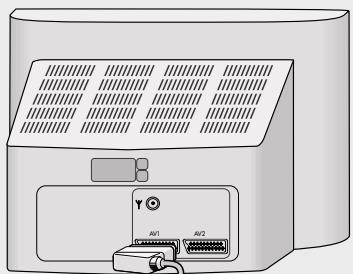
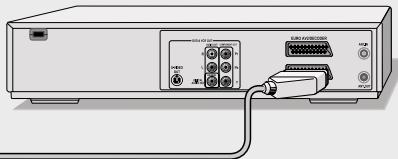
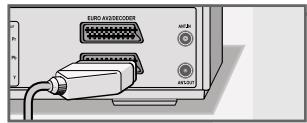
1 Plug the EURO-AV cable supplied into the »EURO AV1« socket on the DVD/VCR recorder and the corresponding socket on the television or flat screen.
Connecting a television or flat screen using a Y/C (S-VIDEO) cable and cinch cables
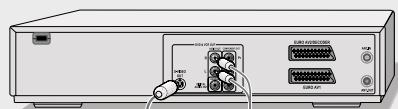
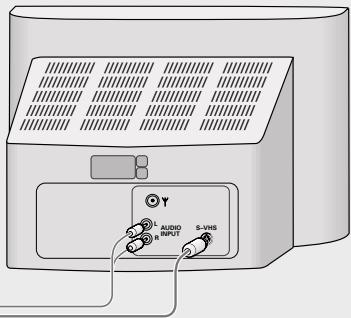
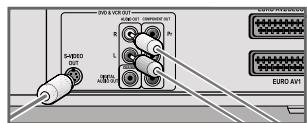
1 Plug a standard Y/C cable into the «S-VIDEO OUT« socket of the DVD/VCR recorder and into the corresponding socket (S VIDEO IN) of the television or flat screen.
2 Plug standard cinch cables into the «AUDIO OUT RL« sockets on the DVD/VCR recorder and the corresponding sockets (AUDIO IN) on the television or flat screen.
CONNECTION AND PREPARATION
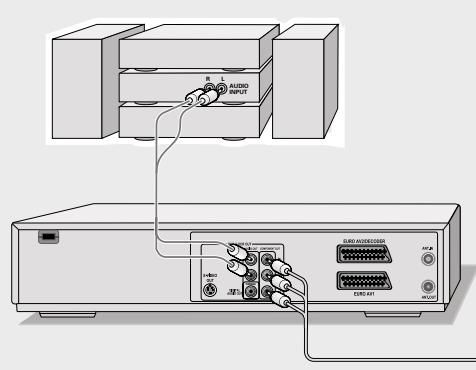
Connecting an audio system with analogue two-channel stereo sound
As an alternative to using the television's speakers, the sound can also be played back through an audio system. This can improve the sound quality.
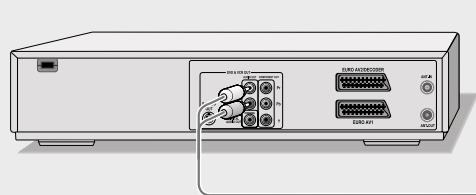
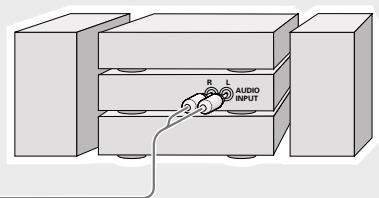
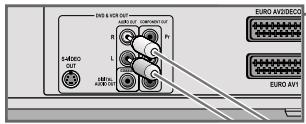
1 Plug a standard cinch cable into the «AUDIO OUT R L« socket on the DVD/VCR recorder and the corresponding sockets on the audio system.
Caution:
Do not connect the «AUDIO OUT R L« sockets on the DVD/VCR recorder to the PHONO (record player) input socket on the audio system.
CONNECTION AND PREPARATION
Connecting a digital multi-channel amplifier or digital two-channel audio system
A multi-channel audio/video amplifier (Dolby* digital decoder or DTS - Digital Theatre System) decodes the digital multi-channel sound of the DVD to provide optimum sound quality.
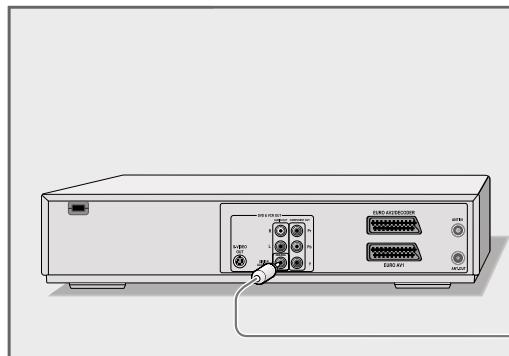
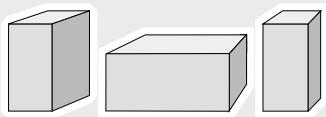
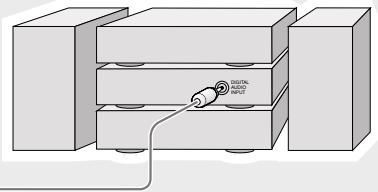
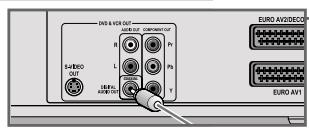
1 Plug the cinch cable supplied into the >DIGITAL AUDIO OUT< socket on the DVD/VCR recorder and the corresponding socket on the digital multi-channel amplifier.
Note:
Even if you are using a digital connection, you should still make an analogue audio connection (see page 16) because depending on the disc type, the «DIGITAL AUDIO OUT« socket may not be able to transfer the signal.
- Manufactured under licence from Dolby Laboratories Licensing Corporation. "Dolby", "Dolby Pro Logic", "Dolby Digital" and the double-D symbol "D" are trademarks of the Dolby Laboratories Licensing Corporation. Copyright 1992 Dolby Laboratories, Inc. All rights reserved.
CONNECTION AND PREPARATION
Connecting the mains cable
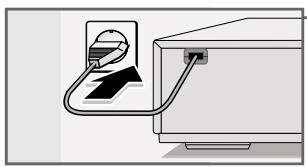
Plug the power cord into the wall socket.
Caution:
The only way to disconnect the DVD/VCR recorder from the mains is to pull out the plug.
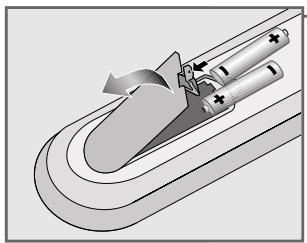
Putting batteries in the remote control
1 To open the battery compartment, press the catch and remove the lid.
2 When inserting the batteries (micro type, e.g. LR 03 or AAA, 2 × 1.5V ) observe the polarity marking in the battery compartment.
3 Close the battery compartment.
Note:
If the DVD/VCR recorder no longer reacts properly to remote control commands, the batteries may be flat. Always remove used batteries. The manufacturer accepts no liability for damage resulting from leaking batteries.
Environmental note:
Batteries, including those which contain no heavy metals, may not be disposed of with household waste. Please dispose of used batteries in an environmentally responsible manner. Find out about the legal regulations which apply in your area.
Switching on the DVD/VCR recorder
1 Switch the DVD/VCR recorder on by pressing STANDBY/ON on the device.
- Display: >WAIT, after a short time the DVD/VCR recorder is ready.
Initial setup
Installation
Welcome. Press the [Enter] button, to start the automatic station search. make sure the antenna is connected first.
End setup
Starting initial setup
When you first switch on the DVD/VCR recorder, the «Installation« menu always appears.
This guides you step by step through each setting.
Make sure the antenna cable is correctly connected
1 Press ENTER to activate initial installation.
Installation
Please select your language before you start automatic installation:
English
Spanish
French
Czech
Danish
German
Dutch
Confirm with Enter End setup Select
Selecting the screen menu language
With this you set the language of the DVD/VCR recorder's screen menu.
1 Select your language using ▲or ▼and press ENTER to confirm.
Installation
Please select the appropriate
country:
Australia
Belgium
Denmark
Finland
France
Confirm with Enter End setup Select ▲
Selecting the country (location)
This setting determines the sort order of the TV stations.
1 Press « or « to select the country and press «ENTER« to confirm.
Notes:
If the required country is not listed, select Other.
Selecting the language of the DVD menus
If a DVD has menus in several languages, you can select your language of choice.
1 Select the language for the DVD menus using or and press ENTER to confirm.
Installation
Please select the menu language for
the disc:
Standard
English
Spanish
French
Czech
Danish
German
Confirm with Enter End setup Select
Installation
Please select the menu language for audio output:
Standard
English
Spanish
French
Czech
Danish
German
Confirm with Enter End setup Select
Installation
Please select the menu language for subtiies:
Standard
English
Spanish
French
Czech
Danish
German
Confirm with Enter End setup Select
Installation
Searching for available stations:

6 stations found Please wait...
End setup
Selecting the dubbing language
If several languages are available on the current DVD, the sound is played back in the language you have selected.
If the language you select is not on the DVD, the DVD/VCR recorder automatically selects first audio language available.
1 Select your language using or and press ENTER to confirm.
Selecting the language for the subtitles
If subtitles are available on the current DVD, they are first shown in the language you have selected.
1 Select your language using or and press OK to confirm.
Tuning television stations
The DVD/VCR recorder has its own receiver unit. It can receive and record from television stations independently of the television. This means the TV channels have to be tuned on the DVD/VCR recorder. During this setting, the clock is automatically updated. However, this is only possible if channel position 1 is occupied by a station with teletext.
1 After the subtitle language has been confirmed the search starts.
The DVD/VCR recorder searches all channels for television stations, then sorts and saves them. The automatic search may take several minutes.
- The message: »Search complete« appears. The initial setup is complete, the DVD/VCR recorder switches to station position 1.
Notes:
Other settings such as sorting stations or adding new ones manually are described under "Special settings", starting on page 66.
The section on the next page shows how to set the TV system or picture format of your television.
Selecting the screen format of your television set
This setting depends on your television or flat screen, and on the information on the DVD.
If you have a 4:3 format television or flat screen, the following settings are available:
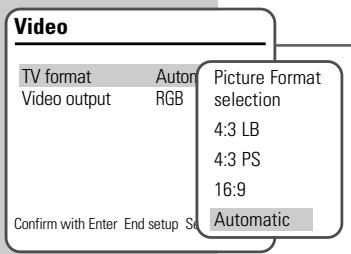
»4:3 P&S« for wide-screen playback, with the left and right edges of the picture cropped (depending on the DVD used) or «4:3 LB« for wide-screen playback with black bars at the top and bottom of the television screen.
If you have a 16:9 format television or flat screen, select the «16:9« setting.
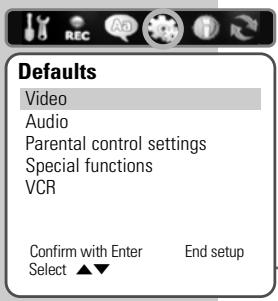
1 Press SETUP to open the main menu.
2 Select Defaults<with or
3 Select «Video« with «▼« or «▲« and activate with «ENTER«.
4 Select TV format with or ENTER to activate it.
5 Select the required picture format (»4:3 LB«, »4:3 P&S«, «16:9« or «Automatic«) with «▼ « or « ▲ « and confirm with «SETUP«.
6 Exit the menu, by pressing SETUP repeatedly.
Setting the signal type for the video output socket
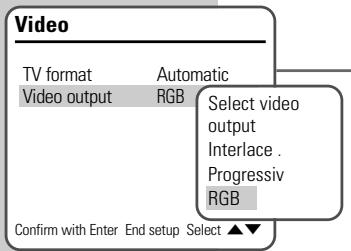
The video output of your DVD/VCR recorder was set at the factory to RGB .
If you connect your DVD/VCR recorder using cinch cables ( Y , Pb / Cb and Pr / Cr sockets of the DVD/VCR recorders) to the television, flat screen or projector, you must set the video output to Progressive or Interlace so that the video signal and therefore the picture reaches the television.
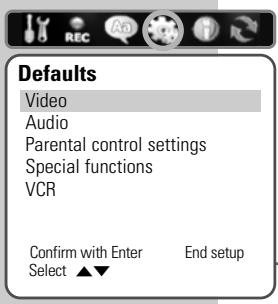
1 Press SETUP to open the main menu.
2 Select Defaults<with or
3 Select «Video« with «▼« or «▲« and activate with «ENTER«.
4 Select «Video output« with «▼ or » ▲ « and press «ENTER« to confirm.
- «Interlace« for the «Pr«, «Pb« sockets and «Y«; «Progressive« for the «Pr«, «Pb« and «Y« sockets. «RGB« for the «EURO AV1« socket.
5 Exit the menu, by pressing SETUP repeatedly.
Preparation
Switch on the television and select the preset channel for the DVD/VCR recorder.
2 If an audio system or an AV receiver is connected to the DVD/VCR recorder, switch it on and select the audio input for the DVD/VCR recorder.
3 Switch the DVD/VCR recorder on by pressing STANDBY/ON on the device.
- Display on the DVD/VCR recorder OH afterwards the time and the station position are displayed.
Inserting a disc
Press on the DVD/VCR recorder or on the remote control. -Display: OPEN, the disc tray opens.
2 Insert a disc in the disc compartment with the label facing upwards.
3 Press on the DVD/VCR recorder or on the remote control. -Display: close, the disc tray retracts again.
Notes:
Call up the index of the DVD+RW/DVD+R with MENU*.
Select the desired title with , , or and start playback with ENTER.
Playback of a DVD, VCD, SVCD, or audio CD (CDDA) starts automatically.
If the symbol appears on the television screen, the selected function is not possible with this disc.
Removing discs
Press on the DVD/VCR recorder or on the remote control. - The disc compartment opens.

DVD playback
DVD features
You can recognise a DVD by the logo on the label.
Depending on the content of the DVD, the discs contain one or more titles.
Each title may contain one or more chapters.
You can control and direct playback of a DVD/VCR using the menu of the DVD recorder on the television screen.
Special DVD features
DVDs have a title menu which provides an overview of the available titles and the passages they contain.
Some of the DVD/VCR recorder's functions, such as slow motion or freeze-frame can also be controlled by the DVD itself. It is therefore possible that the freeze-frame function, for example, cannot be selected during certain scenes.
Many DVDs have audio tracks recorded in up to eight languages. This enables you to select the language you prefer.
Many DVDs are recorded by the manufacturer with subtitles in several languages. This enables you to select the subtitles you prefer.
Playback
1 Switch the remote control to disc mode with »DVD«.
2 After the disc compartment closes and the DVD is scanned, playback starts automatically.
- Display: the chapter and elapsed playing time.
Notes:
Depending on the DVD you are using, you may have to select a title or chapter from its table of contents.
The index can also be called up with MENU
Select the chapter or title with ▲«, «▼ «, « △ « or » ▷ « and start playback with «▶■ « or » ENTER«.
The playback menu can be called up with «DISPLAY». The functions are described in the "Playback convenience functions" chapter.
If DVD access is not authorised, you must change the access level (1 ... 8) (see the section on authorising the content of the DVD on page 59).
If the symbol appears on the television screen, then the selected function is not possible with this DVD.
3 To pause playback (freeze-frame), press II.
4 Press to resume playback.
5 To stop playback, press » « twice.
DVD+RW/+R playback
DVD+RW/+R features
You can recognise DVD+RWs and DVD+Rs by the logo on the label. If programmes were recorded on the discs, your DVD/VCR recorder can play them back.
If you want to play a DVD+R on a DVD player, it must first be finalised.
Playback
1 Switch the remote control to disc mode with DVD.
2 After the compartment is closed and the DVD+RW/DVD+R is scanned, playback starts automatically if the disc is write-protected or finalised.
Note:
If playback does not start automatically, call up the index with MENU , select the desired title from the index with ▲ or ▼ and start playback with □ or ENTER .
3 To pause playback (freeze-frame), press III<.
4 Press to resume playback.
5 To stop playback, press » « twice.

VCD/S-VCD playback
S-VCD/VCD features
You can recognise S-VCD/VCDs (video CDs) by the logo on the label.
Depending on the contents of the S-VCD/VCD (films, music videos etc.), the discs may carry one or more tracks.
S-VCDs/VCDs can be created using the PBC (playback control) system for track navigation. This depends on the processing and burning software used.
You cannot select some of the functions on the DVD/VCR recorder (slow motion, camera angle, marking scenes) when you are playing an S-VCD/VCD. This relates to how the S-VCD/VCD was created.
Playback
1 Switch the remote control to disc mode with «DVD«.
2 After the disc compartment closes and the S-VCD/VCD is scanned, playback starts automatically.
- Display: tracks and elapsed playing time.
Note:
Depending on the S-VCD/VCD in use, it may be necessary to select the disc title from a title list with «▼ « or « ▲ « and call it up with «ENTER«.
Press MENU to return to the previous menu.
3 To pause playback (freeze-frame), press » III «.
4 Press repeatedly to switch through individual frames.
5 Press to resume playback.
6 Press » « to end playback.
Note:
The playback menu can be called up with DISPLAY
Frame search
Several different speeds are available.
1 Select the playback speed during playback by pressing
2 Press to resume normal playback.
Switching PBC (playback control) on and off
1 Press DISPLAY during playback.
2 Select PBC with ▼ or ▲ and press ENTER to confirm.
3 Press or to activate the PBC function (On).
Note:
To deactivate the PBC function, repeat the setting, but at step 3, select Off.

Playback of an MP3 CD
MP3 CD features
MP3 stands for MPEG-1 Audio Layer 3 and arises from the Motion Picture Expert Group (MPEG) Standard which was developed for compressing film data.
The MP3 format enables audio files to be saved on a data carrier with a sound quality similar to that of a CD. This only requires about 10% of the original data quantity. The standard encoding bit rate for MP3 files is 128 kbps. Generally, the higher the bit rate of an MP3 file, the better the sound quality.
Most MP3 files on the Internet are encoded at 128 or 160 kbps. 160 kbps is considered CD quality.
MP3 CDs contain sound recordings. They can be played in the normal manner on an audio system. The digital signals transmitted during MP3 playback are PCM encoded, regardless of the audio output setting. The signals are output with the same data rate as the music source (possibilities are: 32 kbps - 320 kbps, ideally: 128 kbps).
MP3 files can be organised into folders and sub folders, in a similar way to files on a PC.
Playback
1 Switch the remote control to disc mode with »DVD«.
2 After the disc compartment has closed, the disc is scanned and the file browser (contents menu) of the MP3 CD is displayed.
3 Select the folder or track with ▲or ▼
4 Press ENTER to open the folder.
- A list of subdirectories appears.
5 Press II or ENTER to start playback of the track.
- The playing time and the title appear in the display on the DVD/VCR recorder.
6 Press to pause playback.
7 Press to resume playback.
Notes:
The repeat functions can be selected with REPEAT. Use TITLE to switch between MP3 mode and JPEG mode.
Press to end playback.
Picture data CD playback
JPEG CD features
JPEG stands for Joint Picture Experts Group. This process was designed to compress picture files.
JPEG files can be burned onto a CD along with other file types. These CDs are known as file CDs or mixed-mode CDs. For example, the CD could contain MP3 files (audio) and JPEG files (for example to display album covers).
The files on a JPEG CD can be organised in directories. This structure is similar to that of an MP3 CD.
JPEG CDs only contain data in the compressed JPEG format. This is mostly data from digital cameras or from imaging programs.
KODAK picture CD features
This method was developed for archiving analogue photographs.
After they are developed, small photographs are scanned with a resolution of 1536 × 1024 pixels and burnt onto a CD in JPEG format.
A KODAK picture CD can contain up to 40 pictures. In addition to the picture files, a KODAK picture CD can also contain imaging software which enables the user to play the CD on a PC, edit the pictures or view a slide show.
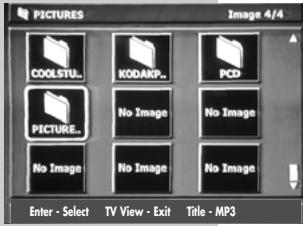
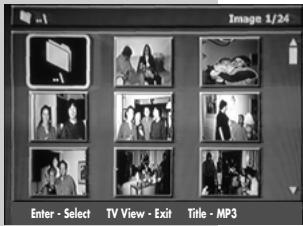
Playing back a JPEG CD or KODAK Picture CD
1 Switch the remote control to disc mode with DVD.
2 After the disc compartment has closed, the disc is scanned and the file browser (contents menu) of the JPEG CD is displayed.
3 Select the required folder (or picture) with , , or .
-A list of subdirectories appears.
4 Press ENTER to open the folder.
5 Select the desired picture with , , or and confirm with ENTER.
- The JPEG picture is displayed, afterwards, all subsequent pictures are displayed.
Notes:
To view the picture for longer, press Press to resume playback.
Use TITLE to switch between MP3 mode and JPEG mode.
Adjusting the picture display
The pictures can be rotated or inverted.
1 During playback, press « or » to rotate the pictures by 90^ .
2 Press to end playback.
Simultaneous playback of JPEG data and MP3 data
You can display picture data as a slide show and listen to Mp3 music files simultaneously. This requires a CD with MP3 and JPEG files.
Insert the CD in the disc compartment and call up the file browser (table of contents) of the MP3 CD with «TITLE«.
2 Select the folder or track with ▲or ▼
3 Press ENTER to open the folder. - A list of subdirectories appears.
4 Press II or ENTER to start playback of the track.
5 During playback of the MP3 file, press «TITLE«.
- Music playback is continued, the file browser (table of contents) of the JPEG CD is displayed
6 Select the picture file with , , or and start the slide show with ENTER. The picture and music files are played back simultaneously.
7 Press TV VIEW to end playback.

Audio CD playback
Audio CD features
You can recognise audio CDs by this logo.
Audio CDs only contain sound recordings. They can be played in the normal manner on an audio system.
The individual tracks are stored in a sequence. There are no folders.
Playback
1 Switch the remote control to disc mode with »DVD«.
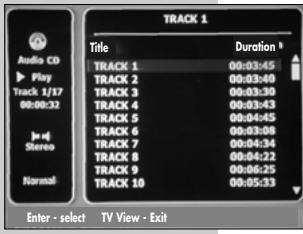
2 Press to start playback of the disc or
Select the desired tracks with or and start playback of the tracks with .
- Display: track number and overall playing time.
- Playback stops at the end of the CD.
3 Press to pause playback.
4 Press to resume playback.
Note: The repeat functions can be selected with REPEAT<.
Selecting a track in steps (SKIP)
1 Select the next track by pressing during playback.
2 Select the previous track by pressing
- Playback begins with the selected track.
Fast search
Two different speeds are available.
1 To select the playback speed, press or repeatedly during playback.
2 Press to resume normal playback.
PLAYBACK CONVENIENCE FUNCTIONS
Notes:
The sound is muted during the frame search, slow motion and freeze-frame functions.
Depending on the disc, some functions cannot be selected.
Selecting titles and chapters
If there are several titles or chapters on a disc, you can select them.
Selecting titles and chapters step by step
1 During playback, select the title or chapter by pressing «» or «.
Selecting titles and chapters directly
1 During playback, call up the desired input option (title or chapter) with «SEARCH«.
2 Select title (T) with ▲or or press to switch to chapter input (C) and select the chapter with ▲or
- Playback of the selected title or chapter begins.
Selecting a section to the minute
1 During playback, call up the playback menu with DISPLAY
2 Select «Elapsed« with « ▲ « or «▼ « and activate with «ENTER «.
3 Enter the desired playing time:
Enter hours, minutes, seconds with ▲ or ▼
Select the input position with ▲ or Confirm the playing time with ENTER.
- The DVD/VCR recorder locates the section and starts playback.
Select title, chapter or function with the playback menu
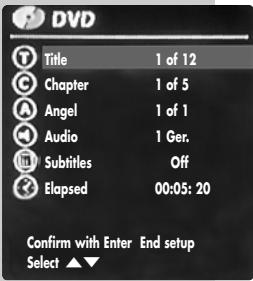
1 During playback, press >DISPLAY<.
- The playback menu appears.
2 Select the item you want with ▲ or ▼ and press ENTER to confirm.
3 Select the title, chapter or the desired function with or and confirm with ENTER .
4 Press DISPLAY to quit the playback menu.
PLAYBACK CONVENIENCE FUNCTIONS
Pausing and resuming playback
The playback of a DVD can be interrupted at any point and then resumed from the same place.
Interrupt playback by pressing once only.
2 Press to resume playback at the point where it was interrupted.
Frame search
Several different speeds are available.
1 Select the desired playback speed during playback with or .
2 Press to resume normal playback.
Slow motion forward
Several different speeds are available.
Press during playback.
2 Press to select the slow motion speed.
3 Press to resume normal playback.
Frame-by-frame playback
Press during playback.
2 Press to advance frame by frame.
3 Press to resume normal playback.
Selecting camera angles for scenes
Some DVDs contain scenes or passages which were filmed several times from different camera angles.
You can choose from among these different angles.
Press ANGLE during playback to select the camera angle function.
- Display: Angle 02 / 04 , in this example 2 of 4.
2 Press ANGLE to select a different camera angle.
PLAYBACK CONVENIENCE FUNCTIONS
Enlarging and moving the screen section (zoom)
1 During playback, press «ZOOM«.
2 Press ZOOM to select the zoom factor. - The DVD/VCR recorder enlarges a screen section.
3 Move the picture section around the screen with , , or .
4 Press ZOOM to return to normal playback.
Switching the dubbed language or the audio format
These settings allow you to listen to a dubbed language other than the default one if the DVD provides alternatives.
1 Press AUDIO during playback.
- Display: for example «Audio 1. Ger«, the current audio language is displayed.
2 Press AUDIO to select the audio language you want.
Note:
The structure of the DVD itself may stop you from switching the audio language. In this case you can usually make the setting in the DVD menu.
Selecting and displaying subtitles
If the DVD provides subtitles, they can be displayed on your TV screen.
When subtitles are available in several languages, you can select your preferred language.
1 Press SUBTITLE during playback.
- Display: for example «Subtitles 1. Ger«.
2 Press SUBTITLE to select the subtitle language.
Notes:
To switch off the subtitles, keep pressing >SUBTITLE « until »Off« appears in the display.
The structure of the DVD itself may stop you from activating and deactivating subtitles. In this case you can usually make the setting in the DVD menu.
PLAYBACK CONVENIENCE FUNCTIONS
Repeating a chapter, a title or a disc
Depending on the type of disc, you can repeat chapters, titles, folders or the entire disc.
1 To repeat the chapter, press REPEAT during playback until
》Chapter« appears in the display.
- The chapter currently playing is repeated;
or
to repeat the title, press REPEAT during playback until
»Title« appears in the display.
- The current title is repeated;
or
to repeat the entire disc, press REPEAT during playback
until Disc appears in the display.
- The disc is repeated.
2 To quit the function, keep pressing REPEAT until there is
nothing in the display.
Repeating a selected section (A-B Repeat)
You can mark the beginning and end of a section and play it repeatedly.
1 Press A-B during playback.
- The start of the section is marked.
2 Press A-B again to mark the end of the scene.
- The selected section is repeated continuously.
3 Press A - B again to quit the function.
Switch on the television and select the preset channel for the DVD/VCR recorder.
2 If an audio system or an AV receiver is connected to the DVD/VCR recorder, switch it on and select the audio input for the DVD/VCR recorder.
3 Switch the DVD/VCR recorder on by pressing STANDBY/ON on the device.
4 Insert a recorded video tape into the compartment with the window facing upwards until it is automatically drawn in.
Note:
If you put a cassette with the protection tab removed into the DVD/VCR recorder, playback starts automatically.
Basic playback functions
1 Switch the remote control to VCR with VCR.
-Brief display: VCR selected ...<.
2 Press to start playback.
-Brief display on the television screen: Play, the playing time and the tape speed.
3 Press to end playback.
4 Eject the cassette by pressing EJECT on the DVD/VCR recorder.
Eliminating picture disturbances (unwanted lines)
Automatic
After playback is started, the DVD/VCR recorder automatically sets the track position of the tape.
Manual
1 During playback, use -TRACKING + to set the picture that is best for you.
- This setting is retained until the cassette is removed.
Freeze-frame
Pressing repeatedly switches the freeze-frame onwards step-by-step.
Note:
After approximately 5 minutes, the timer switches the DVD/VCR recorder to playback automatically.
2 Press to resume normal playback.
1 During playback, select reverse/forwards search with or .
Press several times to change the playback speed.
Note:
After approximately 5 minutes, the DVD/VCR recorder switches to playback automatically.
2 Press to resume normal playback.
Slow motion forward
1 Press SLOW + during playback.
2 Alter the slow motion speed with SLOW +
3 Press to resume normal playback.
Fast forward/rewind
1 Stop the DVD/VCR-Recorder with «.
2 Rewind with or fast forward with
Setting search functions for the VCR unit
This determines if the DVD/VCR recorder searches tape positions for index marks or for zero positions on the video tape. There must be a video cassette in the cassette compartment.
1 Stop the DVD/VCR-Recorder with » «.
2 Press SETUP to open the main menu.
3 Select Defaults with or
4 Select VCR with or ▲ and activate with ENTER .
5 Select the desired search criteria (Index +, Index - or Go-to zero) with or and activate with ENTER .
- The DVD/VCR recorder winds to the selected tape position.
Defaults
Video
Audio
Parental control settings
Special functions
VCR
Confirm with Enter
Select
End setup
VCR
Index +
Index -
Go-to zero
Confirm with Enter End setup Select

Recording options
- Every recording can be made on discs (DVD+R and DVD+RW) or on a video cassette. Recording simultaneously on both media is not possible.
- One-touch recording: select the required television station on the DVD/VCR recorder and start recording immediately.
- Delayed recording - using the ShowView numbers.
- Delayed recording - by entering data for the TV programme.
You can program up to eight programmes within a year, or record programmes at the same time every day or week.
Suitable discs for recording
You can use DVD+R and DVD+RW discs for recording.
DVD+Rs can only be recorded on once. If you want to play these discs on a DVD player, you first have to finalise them. Once they have been finalised, they can no longer be recorded on.
If you want to play them on your DVD/VCR recorder, you do not have to finalise them.
You can add more recordings and delete them as necessary.
Note that any playing time you delete is no longer available for recording.
DVD+RWs (rewritable) can be recorded on very often (up to a thousand times) and deleted.
You may have to delete other recordings on DVD+RWs before you can record on them.
Unsuitable discs
- Damaged discs cannot be recorded on.
- Finalised discs cannot be recorded on. This can only be done with unfinalised discs.
- Full discs cannot be recorded on. The recordings must be deleted beforehand.
- Very rarely, discs are defective and therefore cannot be recorded on. Try recording on another disc.
Initialising discs
The DVD+R is automatically initialised before recording, this can take a few minutes.
Only then is recording possible.
Recording quality and time (disc mode)
You can set the quality of the recording. The table below shows the relationship between quality and recording time:
Quality Time
HQ - Very high quality 60 minutes on a
4.7 GB blank DVD
SP - High quality 120 minutes on a
4.7 GB blank DVD
EP - Better than VHS picture quality 240 minutes on a
4.7 GB blank DVD
SLP-VHS picture quality 360 minutes on a
4.7 GB blank DVD
The quality and recording time are interdependent. The better the quality, the more memory the recording requires. This means that the recording time is shorter in high quality mode than in standard quality mode.
Preparing for recording
Switch the DVD/VCR recorder on by pressing STANDBY/ON on the device.
2 Select if a recording is to be made on disc or video cassette with DVD or VCR .
3 Press on the DVD/VCR recorder or on the remote control. Insert a disc in the disc compartment with the label facing upwards.
Press « on the DVD/VCR recorder or on the remote control.
4 Push a video cassette into the cassette compartment.
Recording television programs from the antenna or the cable connection
1 Press INPUT to select the input source (for example, TV).
- Display: for example «PR 01 BBC«, the current TV station is shown.
2 Select the desired TV station with PR + () or PR - () .
3 Select the recording quality, to do this press REC SPEED to select the Recording mode menu and set the recording quality with REC SPEED .
4 Press to start recording.
- The tape position is displayed.
Notes:
During recording, the desired switch-off time can be entered with
In disc mode, the setting is made in steps of 15 minutes, in VCR mode, the setting is made in 30-minute steps (up to 10 hours). The switch-off time depends on the playing time left on the disc or the video cassette.
The DVD/VCR recorder automatically switches off the recording after this time.
You cannot select the recording pause function if you have entered a switch-off time.
The info line can be hidden and displayed again by pressing >DISPLAY<.
5 Press to pause recording.
6 Press to resume recording.
7 Press to end the recording.
Recording television programs from the satellite receiver
1 Switch on the satellite receiver.
2 Select the required satellite station on the satellite receiver.
3 Select the station position on the DVD/VCR recorder for the satellite receiver with INPUT.
4 Select the recording quality, to do this press REC SPEED to select the Recording mode menu and set the recording quality with REC SPEED .
5 Press to start recording. - The tape position is displayed.
Notes:
During recording, the desired switch-off time can be entered with
In disc mode, the setting is made in steps of 15 minutes, in VCR mode, the setting is made in 30-minute steps (up to 10 hours). The switch-off time depends on the playing time left on the disc or the video cassette.
The DVD/VCR recorder automatically switches off the recording after this time.
You cannot select the recording pause function if you have entered a switch-off time.
The info line can be hidden and displayed again by pressing DISPLAY
6 Press to pause recording.
7 Press to resume recording.
8 Press to end the recording.
"Finalising" a disc (DVD+R) or "making a disc compatible" (DVD+RW)
If you want to play programmes recorded on your DVD/VCR recorder on a DVD player, you must first finalise the disc as described on page 54 and in the "Completing a title alteration (DVD+RW only)" chapter on page 53.
Error messages
The DVD/VCR recorder displays messages showing how to deal with any errors which might occur.
Programming recording by entering the ShowView number*
The time and date on the DVD/VCR recorder must be accurate.
The ShowView numbers for television programmes are printed in TV guides.
If all the timer positions are occupied you must delete one, as described in the section on deleting recording data on page 44.
Preparation
Switch on the television.
Select the AV channel on the television for the DVD/VCR recorder.
Switch the DVD/VCR recorder on by pressing STANDBY/ON on the device.
Put a DVD+R or DVD+RW in the disc compartment or a video cassette in the cassette compartment.
ShowView
Please enter the ShowView code:
Confirm with Enter End setup Select
Edit timer
| Medium | ○ |
| PR No. | PR-03 |
| Date | 03 / Dez. Fr |
| Start | 13:30 |
| End | 14:30 |
| Mode | HQ |
| Repeat. | Once |
| Delete |
Save with Enter End setup
Edit Timer
| Medium | ○ |
| PR No. | PR-03 |
| Date | 03 / Dez. Fr |
| Start | 13:30 |
| End | 14:30 |
| Mode | HQ |
| Repeat. | Once |
| Delete | |
| Enter-Save | Setup-Exit |
Example
1 Press «TIMER«, use «▼ or « ▲ « to select «ShowView programming « and activate your entry with «ENTER «. - The «ShowView« menu appears.
2 Enter the ShowView number for the desired broadcast with 1 0
Note:
In the case of an incorrect entry, the ShowView number can be deleted with CLEAR .
3 Confirm the ShowView number with «ENTER«.
- The Edit timer is displayed.
Note:
The first time a television station is programmed the station number of the television station must be entered. Select the station number with or . Selecting the station number is not necessary for all future programming.
4 Select Medium with or and select the recording medium (disc or video cassette) with or.
5 Select Mode with or and select the recording quality with or .
6 If the broadcast is to be recorded "Once" or "Daily", "Weekly" or "Work days" at the same time, then press or to select Repeat and select the recording mode with or .
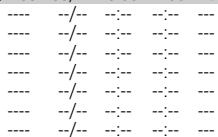
Timer list
PR No. Date Start End Mode
PR03 03/12 13:30 14:30 HQ
Enter-Edit Setup-Exit Select
7 Save the recording data with OK.
- The Timer menu appears on the screen again.
8 For further recordings, repeat the procedure from step 2 or end the timer setting with SETUP .
9 Switch off the DVD/VCR recorder by pressing STANDBY/ON on the device.
- The clock symbol is shown on the DVD/VCR recorder.
Note:
The TIMER recording in progress can be prematurely stopped by pressing and holding it down.
Error messages
The DVD/VCR recorder displays messages showing how to deal with any errors which might occur.
Programming recording by entering the data for the television programme
Notes:
The time and date on the DVD/VCR recorder must be accurate. If all the timer positions are occupied you must delete one, as described in the section on deleting recording data on page 44.
If the timer recording is to be performed using VPS/PDC control, switch this on in the «Defaults« - «Special functions« menu.
Preparation
Switch on the television.
Select the AV channel on the television for the DVD/VCR recorder.
Switch the DVD/VCR recorder on by pressing STANDBY/ON« on the device.
Put a DVD+R or DVD+RW in the disc compartment or a video cassette in the cassette compartment.
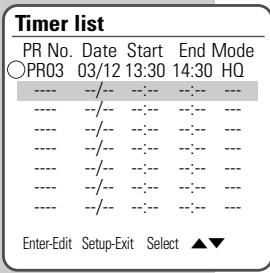
Timer list
| PR No. | Date | Start | End Mode |
| 0PR03 | 03/12 | 13:30 | 14:30 HQ |
| ---- | ---- | ---- | ---- |
| ---- | ---- | ---- | ---- |
| ---- | ---- | ---- | ---- |
| ---- | ---- | ---- | ---- |
| ---- | ---- | ---- | ---- |
| ---- | ---- | ---- | ---- |
Enter-Edit Setup-Exit Select
Edit timer
| Medium | ○ |
| PR No. | PR-01 |
| Date | 03 / Dez. Fr |
| Start | 13:30 |
| End | 14:30 |
| Mode | HQ |
| Repeat. | Once |
| Delete |
Save with Enter End setup
Example
1 Press TIMER then use or to select Manual programming and activate your entry with ENTER. - The Timer list menu appears.
2 Select a free timer position with or and activate this with ENTER. - The Edit Timer is displayed.
3 Select the recording medium (disc or video cassette) with or .
4 Select PR No. with or and select the desired television station with or
Note:
If, instead of a television station, a picture/sound signal of an external device is to be recorded, select the «AV1« or «AV 2« station position with «▼ or « ▲ «.
Recording from a satellite receiver:
If a television station from a connected satellite receiver is programmed, press or to select the AV 2 station position and set the desired television station on the satellite receiver. The satellite receiver must be switched on at the selected recording time and for the duration of the TIMER recording.
Edit timer
| Medium | ○ |
| PR No. | PR-01 |
| Date | 03 / Dez. Fr |
| Start | 13:30 |
| End | 14:30 |
| Mode | HQ |
| Repeat. | Once |
| Delete | |
| Save with Enter End setup | |
Edit timer
| Medium | ○ |
| PR No. | PR-01 |
| Date | 10 / Dez. Fr |
| Start | 20:15 |
| End | 21:45 |
| Mode | HQ |
| Repeat. | Once |
| Delete | |
| Save with Enter End setup | |
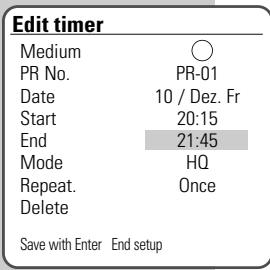
Edit timer
| Medium | ○ |
| PR No. | PR-01 |
| Date | 10 / Dez. Fr |
| Start | 20:15 |
| End | 21:45 |
| Mode | HQ |
| Repeat. | Once |
| Delete | |
| Save with Enter End setup | |
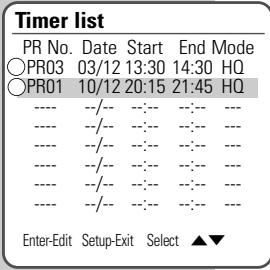
Timer list
| PR No. | Date | Start | End Mode |
| ○PR03 | 03/12 | 13:30 | 14:30 HQ |
| ○PR01 | 10/12 | 20:15 | 21:45 HQ |
| ---- | --/- | --- | --- |
| ---- | --/- | --- | --- |
| ---- | --/- | --- | --- |
| ---- | --/- | --- | --- |
| ---- | --/- | --- | --- |
| ---- | --/- | --- | --- |
| Enter-Edit | Setup-Exit | Select | ▲▼ |
5 Select Date by pressing or
Enter the day of the date on which the recording is to take place with or .
Press and set the month of the date on which the recording is to take place with or .
Select the hours of the start time with or
Press and enter the minutes of the start time with or .
7 Select End with or
Select the hours of the switch-off time with or
Press and enter the minutes of the switch-off time with or .
Select the desired recording quality with or
9 Select Repeat with or
- Once, the recording is made once
-
Daily, the recording is made at the same time every day
- Weekly, the recording is made at the same time every week
- Weekday, the recording is made at the same time every working day
Select the recording mode with or
Note:
If you do not want to save the timer data, select »Delete« with « or » ▷ « and press »ENTER« to confirm.
10 Confirm the recording data with «ENTER«.
- The «Timer recording« menu appears on the screen again.
11 Repeat from step 3 if you want to make more recordings, or press SETUP to quit the Timer recording menu.
12 Switch off the DVD/VCR recorder by pressing »STANDBY/ON« on the device.
- The clock symbol is shown on the DVD/VCR recorder.
Note:
The TIMER recording in progress can be prematurely stopped by pressing » « and holding it down.
Error messages
The DVD/VCR recorder displays messages showing how to deal with any errors which might occur.
Checking, modifying or deleting recording information
Preparation
Switch on the television.
Select the AV channel on the television for the DVD/VCR recorder.
Switch the DVD/VCR recorder on by pressing STANDBY/ON on the device.
Checking recording data
1 Press TIMER then use or to select Manual programming and activate your entry with ENTER. - The Timer list menu appears, displaying the current data.
2 Press or to select the timer item.
3 Close the Timer list menu by pressing SETUP
Editing recording data
1 Press TIMER then use or to select Manual programming and activate your entry with ENTER. - The Timer list menu appears, displaying the current data.
2 Press or to select the timer position and ENTER to confirm.
3 Select the appropriate recording data with and alter the recording data with .
4 Save the recording data with ENTER
5 Close the Edit timer menu by pressing SETUP
Deleting recording data
1 Press TIMER then use or to select Manual programming and activate your entry with ENTER. - The Timer list menu appears, displaying the current data.
2 Press or to select the timer item.
3 Delete the recording data with CLEAR
4 Close the Timer list menu by pressing SETUP
COPYING FUNCTIONS
Copying from a disc to a video cassette
1 Switch the DVD/VCR recorder on by pressing STANDBY/ON on the device.
2 Press on the DVD/VCR recorder or on the remote control. Insert a disc in the disc compartment with the label facing upwards.
Press on the DVD/VCR recorder or on the remote control.
3 Push a video cassette into the cassette compartment.
4 Switch the remote control to disc mode with »DVD«.
5 Select the copying function by pressing COPY
- The »Copying menu« is displayed.
6 Select the DVD -> VCR copying function with or
》▲« and confirm with «ENTER«.
- The » Copy to Tape« menu is displayed.
7 Select the LP or SP tape speed with or and confirm with COPY.
- Disc playback and recording on video cassette are started.
8 Press to pause recording.
- The disc can be changed during the recording pause.
9 Resume recording by pressing COPY ^ twice.
10 Press to end the recording.
Copying menu
Please select copying method:
DVD VCR
VCR->DVD
Confirm with Enter


Copy to tape
Choose speed then
press [COPY]:
LP
SP
STOP
COPYING FUNCTIONS
Copying from a video cassette to disc
Switch the DVD/VCR recorder on by pressing »STANDBY/ON« on the device.
2 Press on the DVD/VCR recorder or on the remote control. Insert a disc in the disc compartment with the label facing upwards.
Press on the DVD/VCR recorder or on the remote control.
3 Push a video cassette into the cassette compartment.
4 Switch the remote control to VCR with VCR.
5 Search for the desired tape position by pressing and searching for the tape position with or . When the tape position has been found, press .
6 Select the copying function by pressing COPY . - The Copying menu is displayed.
7 Select the VCR DVD copying function with or and confirm with ENTER.
- The »Copy To Disc« menu is displayed.
8 Select the recording quality with or and confirm with COPY^
Video cassette playback and recording on disc are started.
9 Press to pause recording.
10 Resume recording by pressing COPY ^ twice.
11 Press to end the recording.
Copying menu
Please select copying method:
DVD VCR
VCR->DVD
Confirm with Enter


Copy to disc
Choose quality then
press [COPY]:
HO
SP
FP
SLP
STOP
MANAGING RECORDING DATA
The index screen of the DVD+R and DVD+RW show the title (if provided by the broadcaster), length, quality and date of the recording. The first frame of the recording is also displayed.
If the "Autom. chapter" function is selected, the DVD/VCR recorder makes chapter markings during recording, depending on the settings. You can edit and delete these, or add new ones later.
You can also edit the name of the recording, rename the disc, and delete individual recordings or all recordings.
Edit disc
Title 1 of 2
Chapter 1 of 8
Edit chapter
Hidden chapter
Change picture index
Split title
Confirm with Enter End setup
Select

Editing titles
Opening the editing menu
Put a DVD+R or DVD+RW in the disc compartment.
- The index screen appears
2 Select the track by pressing or
3 Call up the Edit disc menu with EDIT .
- The »Edit disc« menu appears. Playback of the title starts.
Notes:
If the index screen does not appear, press MENU
The rest of the process is described in the following sections, starting from step 1.
Adding chapter markers
You can add chapter markers within a title to allow you to find scenes quickly during playback.
You cannot add markers if the disc is write-protected or finalised.
Edit disc
Title 1 of 2
Chapter 1 of 8
Edit chapter
Hidden chapter
Change picture index
Split title
Chapter
Chapter
Confirm with Enter End setup
Select

Edit disc
Title 1 of 2
Chapter 1 of 8
Edit chapter
Hidden chapter
Change picture index
Split title
Confirm with Enter End setup
Select

Chapter
Insert
Delete
Delete all
in
:
Chapter
Chapter
Insert
Delete
Delete all
Chapter
Insert
Delete
Delete all
Insert
Delete
Delete all
1 Select Edit chapter with or and activate with ENTER
2 To add your own markers, select Insert with or and press ENTER to insert the marker at the selected scene.
3 Press SETUP to quit the function.
Deleting chapter markers
You can delete individual chapter markers or all the chapter markers on the disc.
1 Select Edit chapter with or and activate with ENTER .
2 To delete current chapter markers, select »Delete« with »▼ « or » ▲ « and delete chapter markers with »ENTER« or
MANAGING RECORDING DATA
Select Delete All with or ▲ and delete all chapter markers with ENTER .
3 Press SETUP to quit the function.
Skip chapter
You can mark chapters to be skipped during playback.
Edit disc
Title
1 of 2
Chapter
1 of 8
Edit chapter
Hidden chapter
Change picture index
Split title
Confirm with Enter End setup
Select
Edit disc
Title
1 of 2
Chapter
1 of 8
Edit chapter
Hidden chapter
Change picture index
Split title
Confirm with Enter End setup
Select
Change Picture
Yes
No
Up
。
Edit disc
Title
1 of 2
1 of 8
Chap
Edit chapter
Hidden chapter
Change picture index
Split title
Confirm with Enter End setup
Select
Split title
in two?
Yes
No.
NO
Select Hidden chapter with or and press ENTER to confirm.
- The chapter is skipped during playback.
Note:
If you want to see the chapter again, select it with 1 0 select Chapter with or and press ENTER to confirm.
2 Press SETUP to quit the function.
Creating a new title thumbnail
You can select and save any scene as a new thumbnail for the title.
1 Select Change picture index with or and press ENTER to confirm.
2 Select Yes with or and select the scene which is to be used as the new title thumbnails and therefore the next title thumbnail by pressing ENTER.
3 Press SETUP to quit the function.
Splitting titles in two (only DVD+RW)
You can split a title into two. You can then delete these two titles separately, so that you can use the memory space on the disc again.
1 Select «Title« with «▼ « or « ▲ « and confirm with «ENTER«. select the desired title with «▼ « or « ▲ « and confirm with «ENTER«.
2 Select Split Title with or ▲ and press ENTER to confirm.
3 Select Yes with or and press ENTER to confirm.
- The title is split.
4 Press SETUP to quit the function.
Note:
Depending on the length of the title, this can take some time.
MANAGING RECORDING DATA


-
TITLE 30/09/2004 12:30:00 SF 00:45:00
-
TITLE 01/10/2004 21:00:00 SP$0.30:00
Change title name
Press the Enter
button to change the name of the title
Confirm with Enter
Change title n
TITLE
CLR
1234567890
ABCDEFGHJJ
KLMNOPQRST
UWWXYZ().
: ; & !
Confirm with Enter


Editing the names of recordings
If you do not like the title name provided by the broadcaster, or none is provided at all, you can create your own title name for the recording.
Put a DVD+R or DVD+RW in the disc compartment.
- The index screen appears.
Note:
If the index screen does not appear, press MENU<.
2 Select the title with or and press to open the title menu.
- The title menu appears.
3 Select the Change title name menu item using or and press ENTER to confirm.
- The title of the recording is shown in the first line.
Notes:
The "buttons" in the top row are function buttons:
》CLR》deletesthe title name.
SP inserts a space.
DEL deletes a letter or character.
SAVE stores the new title name.
4 Press , , or to select letters and numbers, and ENTER to confirm.
5 To confirm the new name, press , , or to switch to the SAVE function key and press ENTER to save the title name.
6 Press SETUP to finish the setting.
MANAGING RECORDING DATA
Deleting titles (recordings) from the disc


- TITLE 30/09/2004 12:30:00 SP 00:45:00

- TITLE 01/10/2004 21:00:00 SP 00:30:00
Erase Title
Press the Enter button to delete this title.
Confirm with Enter
Put a DVD+R or DVD+RW in the disc compartment. - The index screen appears.
Note:
If the index screen does not appear, press MENU
2 Select the title to delete with or and press to open the title menu.
- The title menu appears.
3 Select Erase Title with or and press ENTER to confirm.
4 Select Yes with or and press ENTER to confirm.
- The title is now deleted, a blank title now appears in the title overview.
Notes:
Deleted titles on a DVD+R are only marked as deleted. The playing time of these titles cannot be used for further recordings. The title is simply skipped during playback.
Once a DVD+R is finalised, deleting is no longer possible.
Overwriting titles
This function allows you to use free recording space on the disc.
Note that only the playing time of the title to be overwritten is available for recording.
Put a DVD+R or DVD+RW in the disc compartment.
2 Select the desired TV station with PR + () or PR - () .
3 Display the index picture overview with »MENU«.
4 Select the title to be overwritten with or and press to open the title menu.
- The title menu appears.
5 Select «Recording Options« with « or » « and confirm with «ENTER«.
6 Select the required function with or and confirm recording with ENTER .
- The amount of recording time available is shown.


- TITLE 30/09/2004 12:30:00 SP 00:45:00

- TITLE 01/10/2004 21:00:00 SP 00:30:00

Recording Options
Overwrite title:
And then stop
And then continue
Confirm with Enter

MANAGING RECORDING DATA


-
TITLE 30/09/2004 12:30:00 SP:00:45:00
-
TITLE 01/10/2004 21:00:00 SP 00:30:00

Change Disc Name
Press the [Enter] button to change the name of the disc.
Confirm with Enter
Change Disc Name
MY DVD
CLR SP DEL SAVE 1234567890 A B C D E F G H I J K L M N O P Q R S T U V W X Y Z ( ) . , ; & ;
Confirm with Enter

Entering the name of the disc
You can enter a name for each disc; the name is shown on the index screen.
Put a DVD+R or DVD+RW in the disc compartment. - The index screen appears.
Note:
If the index screen does not appear, press >MENU<.
2 Select the disc information with ▲ and press to confirm.
- The disc menu appears.
Note:
If a disc has been blocked with the »Lock/unlock disc« menu item, the disc name cannot be altered.
3 Select the »Change Disc Name« menu item using « or » ▷ « and press «ENTER« to confirm.
- The title of the recording is shown in the first line.
Notes:
The "buttons" in the top row are function buttons:
》CLR》 deletes the disc name.
SP inserts a space.
DEL< deletes a letter or character.
SAVE stores the new disc name.
4 Press , , or to select letters and numbers, and ENTER to confirm.
5 To confirm the new name, press or to switch to the SAVE function key and press ENTER to save the disc name.
6 Press SETUP to finish the setting.
MANAGING RECORDING DATA

Erase disc
Press the Enter button to erase the disc. All recordings will be deleted.
Confirm with Enter
Erase disc
Erase disc? All recordings will be lost. Yes No
Confirm with Enter

Deleting the content of the disc (DVD+RW)
Put a DVD+R or DVD+RW in the disc compartment. - The index screen appears.
Note:
If the index screen does not appear, press MENU
2 Select the disc information with or and press to confirm. - The disc menu appears.
3 Select Erase disc with or and press ENTER to confirm.
4 Select Yes with or and press ENTER to confirm. The disc is erased. You can no longer open the index screen.
Note:
To cancel the deletion, select No with or and press ENTER to confirm.
Lock/unlock disc
Press [Enter] to lock the disc. This prevents future disc operations or recordings
Confirm with Enter
Lock/unlock disc
Disc is not locked.
Do you want to lock it?
Yes
No
Confirm with Enter

Blocking/unblocking a disc
This protects the disc from being accidentally recorded over.
Put a DVD+R or DVD+RW in the disc compartment. - The index screen appears.
Note:
If the index screen does not appear, press MENU
2 Select the disc information with or and press to confirm. - The disc menu appears.
3 Select the Lock/unlock disc 念 menu item using or and press ENTER to confirm.
4 Select Yes with or and press ENTER to confirm. The disc is blocked and no recordings can be made on it.
Note:
Repeat this setting to unblock the disc.
MANAGING RECORDING DATA
Completing a title alteration (DVD+RW only)
If you have changed titles or chapters, a DVD player may not be able to display this properly.
This function allows you to eliminate this problem.
If Make compatible does not appear in the menu, the disc is already compatible and the setting is not necessary.

Make compatible
Press [Enter] to make any previous title editing compatible with your DVD player.
Confirm with Enter
Make compatible
Make disc compatible with your DVD player Yes No
Confirm with Enter

Put a DVD+RW in the disc compartment.
- The index screen appears.
2 Select the disc information with or and press to confirm.
- The disc menu appears.
3 Select Make compatible with or and press ENTER to confirm.
4 Select Yes with or and press ENTER to confirm.
- The titles and chapters of the DVD+R or DVD+RW will now be correctly displayed on a DVD player.
Note:
Depending on the length of the title, this can take some time.
MANAGING RECORDING DATA
Finalising a disc (DVD+R only)
If you want to play a DVD+R on a DVD player, you must first finalise it. The DVD/VCR recorder can play unfinalised discs.
Note that after a disc is finalised, no changes or any new recordings can be made on it.
Finalise disc
Press the [Enter] button to finalise the disc
Confirm with Enter
Put a DVD+R in the disc compartment. - The index screen appears.
2 Select the disc information with or and press to confirm. The disc menu appears.
3 Select Finalise disc with or and press ENTER to confirm.
4 Select Yes with or and press ENTER to confirm. The title and chapter will now be displayed correctly during playback or a DVD+R on a DVD player.
Note:
Depending on the length of the title, this can take some time.
Finalise disc
Afterwards no more changes are possible. Continue? Yes No
Confirm with Enter


Information
Type DVD+RW
Recordings 5
Total titles 00:57:57
Available space 01:48:48
Finalised
Locked No
Compatible Yes
End setup
Calling up disc information
Put a DVD+R or DVD+RW in the disc compartment. - The index screen appears.
Note:
If the index screen does not appear, press MENU
2 Select the disc information with ▲ and press to confirm.
- The disc menu appears.
3 Select Information using or
4 Press SETUP to close the info menu.
Connection and preparation
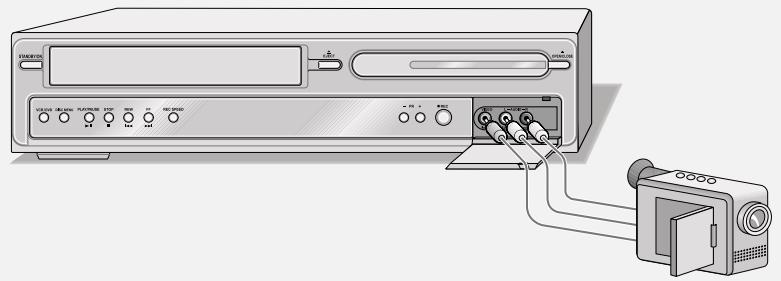
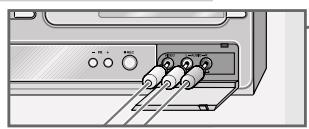
Connecting a camcorder
Connect the «AV.F VIDEO L AUDIO R« sockets on the front of the DVD/VCR recorder to the corresponding sockets on the camcorder using a standard cinch cable
Connecting a video recorder, DVD player or set-top box
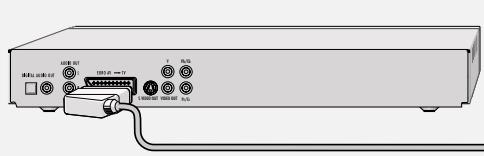
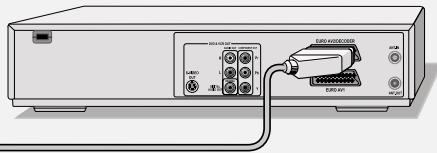
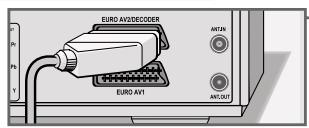
Connect the «EURO AV2/DECODER« socket on the DVD/VCR recorder to the corresponding socket on the video recorder, DVD player or set-top box using a standard EURO-AV (Scart) cable.
Recording from external devices
Preparing for recording
1 Switch the DVD/VCR recorder on by pressing STANDBY/ON on the device.
2 Select if a recording is to be made on disc or video cassette with DVD or VCR .
3 Press on the DVD/VCR recorder or on the remote control. Insert a disc in the disc compartment with the label facing upwards. Press on the DVD/VCR recorder or on the remote control.
4 Push a video cassette into the cassette compartment.
Recording
1 Select the station on the DVD/VCR recorder with INPUT. - AV 2 (for the video recorder, DVD player or set-top box) or AVF (for the camcorder).
2 Press «REC SPEED« until the recording quality you require appears in the display.
3 Press to start recording.
4 Press to pause recording.
5 Press to end the recording.
Connection and preparation
A decoder is necessary when the DVD/VCR recorder receives encoded programs from a private broadcaster. Ask your dealer about the decoder.
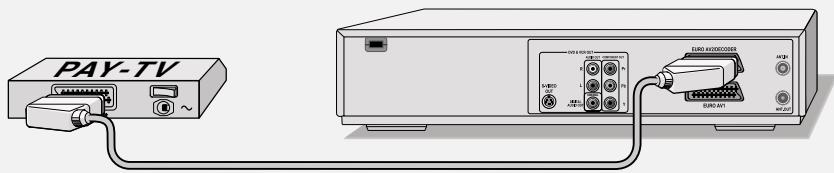
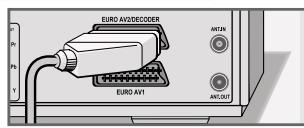
Connection
1 Connect the »EURO AV2/DECODER« socket on the DVD/VCR recorder to a suitable socket on the decoder using a EURO-AV (Scart) cable.
Setting the channel position for a decoder
Using or select the channel for which the decoder is necessary.
2 Press SETUP to open the main menu.
3 Select the Installation menu item by pressing or
4 Select «Manual setting« with «▼« or «▲« and press «ENTER« to confirm.
5 Select Decoder with or and press ENTER to confirm.
Press or to select On and press ENTER to confirm.
6 Select Preset station with or , press ENTER to activate and ENTER to confirm.
7 Press SETUP to finish the setting.
Recording PAY TV programs
Preparing for recording
Switch the DVD/VCR recorder on by pressing STANDBY/ON on the device.
2 Select if a recording is to be made on disc or video cassette with DVD or VCR .
3 Press on the DVD/VCR recorder or on the remote control. Insert a disc in the disc compartment with the label facing upwards. Press on the DVD/VCR recorder or on the remote control.
4 Push a video cassette into the cassette compartment.
Recording
1 Press INPUT to select the input source (for example, TV).
2 Press or to select the pay TV station.
3 Press «REC SPEED« until the recording quality you require appears in the display.
4 Press to start recording.
- The amount of recording time available is shown.
5 Press to pause recording.
6 Press to resume recording.
7 Press to end the recording.
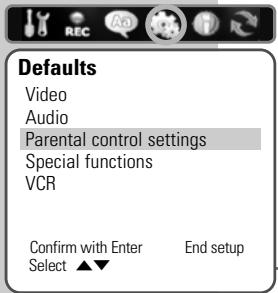
Authorising the contents of a DVD
Films on DVD may be wholly or partially unsuitable for children. These DVDs contain information which marks the content or scenes. They are assigned access levels 1 to 8, which may differ from country to country. You can select one of the access levels and a certain country, and thus authorise alternative scenes for playback.
Setting rating level
1 Press SETUP to open the main menu.
2 Select Defaults with or
3 Select Parental control settings with or and confirm with ENTER .
4 Select Rating level setting with or and confirm with ENTER.
5 Enter the password (3308) with the number buttons 1 0 and confirm with ENTER.
6 Press «▼ or « ▲ « to select the rating level and « ENTER « to confirm.
7 Press SETUP to finish the setting.
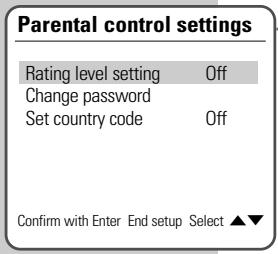
Selecting the country code for rating level control
1 Press SETUP to open the main menu.
2 Select Defaults with or
3 Select Parental control settings with or and confirm with ENTER .
4 Select Set country code with or and confirm with ENTER.
5 Enter the password (3308) with the number buttons 1 0 and confirm with ENTER.
6 Press or to select the country and press ENTER to confirm.
7 Press SETUP to finish the setting.
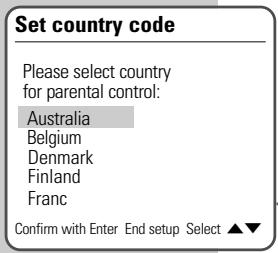
Parental control settings
Rating level setting Off
Change password
Set country code
Off
Off
Confirm with Enter End setup Select ▲
Change password
Old password
New password
Confirm password
End setup Confirm with Enter
Changing the access code (password)
1 Press SETUP to open the main menu.
2 Select Defaults with or
3 Select Parental control settings with or and confirm with ENTER .
4 Select Change password with or and press ENTER to confirm.
5 Enter the current password with (3308) with the number buttons 1 0 . This is a four-digit entry.
6 Enter the new password with the number buttons 1 0 This is a four-digit entery.
7 Enter the same password using the number buttons 1 0 and press ENTER to confirm.
8 Press SETUP to finish the setting.
Selecting sound settings
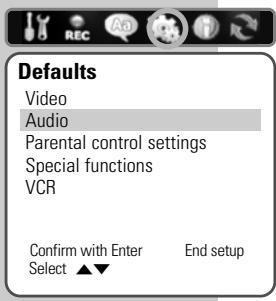
1 Press SETUP to open the main menu.
2 Select Defaults with or
3 Select «Audio« with «▼« or «▲« and confirm with «ENTER«.
Note:
The rest of the process is described in the following sections, starting from step 1.
Selecting the digital output
Here you select whether the audio signal is emitted from the >DIGITAL AUDIO OUT« sockets in the original data format (bitstream) or in LPCM format (Pulse Code Modulation).
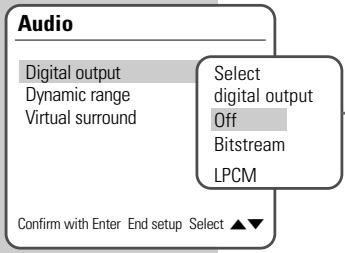
If you select the Off setting, there is no signal output at the DIGITAL AUDIO OUT socket.
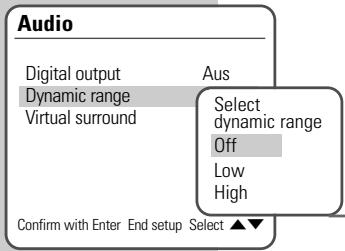
Setting the dynamic volume range
Dolby Digital soundtracks have a very dynamic range. When played at high volume this can be a fascinating experience, which may however cause disturbance late at night.
Simply reducing the volume does not produce pleasing results, and the dialogue becomes difficult to understand. Select the «Low« or «High« setting.
Switching on virtual surround sound
You can switch the virtual surround sound effect on. Virtual Surround is a process which appears to provide sound all around the listener via only two loudspeakers.
1 Select «Virtual surround« with «▼« or «▲« and press «ENTER« to confirm.
2 Switch on the virtual surround sound effect with or and confirm with ENTER .
Finishing the settings
1 Press SETUP to finish the setting.

Languages
OSD language
Menu language
Subtitle language
Audio language
English
Standard
Standard
Standard
Confirm with Enter

End setup
Languages
OSD language
Menu language
Subtitle language
Audio language
Confirm with Enter

English
Select:
S I Iangu
English
Span
French

Languages
OSD language
Menu language
Subtitle language
Audio language
Confirm with Enter

English
Standard
Select
S Iangu
Stand
| Englis
Spani

Languages
OSD language
Menu language
Subtitle language
Audio language
Confirm with Enter

English
Standard
Select
S subtit
Standard
English
Spanish

You can choose between various languages.
1 Press SETUP to open the main menu.
2 Select Languages using or
Note:
The rest of the process is described in the following sections, starting from step 1.
Selecting the screen menu language
With this you set the language of the DVD/VCR recorder's screen menu.
Selecting the language of the DVD menus
If the DVD has menus in several languages, you can select your language of choice.
1 Select »Menu language« with »▼ « or »▲ « and press »ENTER« to confirm.
2 Select the language for the DVD menus using or and press ENTER to confirm.
Selecting the language for the subtitles
If subtitles are available on the current DVD, they are shown in the language you have selected.
If the language you have selected for the subtitles is not on the DVD, the DVD/VCR recorder automatically selects the first language available.
1 Select Subtitle language with or and press ENTER to confirm.
2 Select your language using or and press ENTER to confirm.
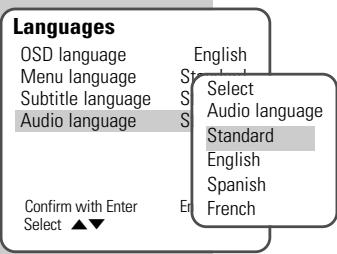
Selecting the dubbing language
If several languages are available on the current DVD, the sound is played back in the language you have selected.
If the language you select is not on the DVD, the DVD/VCR recorder automatically selects first audio language available.
1 Select «Audio language« with «▼ « or « ▲ « and confirm with «ENTER«.
2 Select your language using or and press ENTER to confirm.
Finishing the settings
1 Press SETUP to finish the setting.
RECORDING SETTINGS
Recording settings
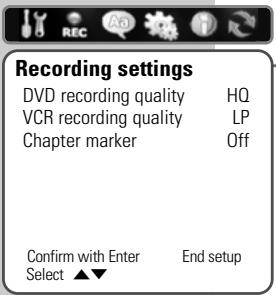
1 Press SETUP to open the main menu.
2 Select Recording settings using or
Note:
The rest of the process is described in the following sections, starting from step 1.
Selecting recording quality for disc recordings
The function allows you to select the recording quality for discs.
1 Select DVD recording quality with or and confirm with ENTER .
2 Select the recording quality using or and press ENTER to confirm.
Selecting recording quality for VCR recordings
The function allows you to select the recording quality for video cassettes.
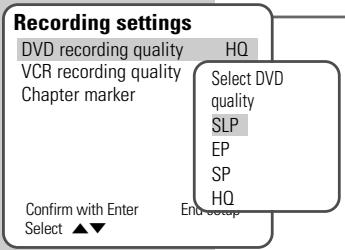
1 Select «VCR recording quality« with «▼ « or «▲ « and confirm with «ENTER«.
2 Select the recording quality using or and press ENTER to confirm.
Adding chapter markers
This function allows you to specify whether and how often chapter markers are automatically set during recording.
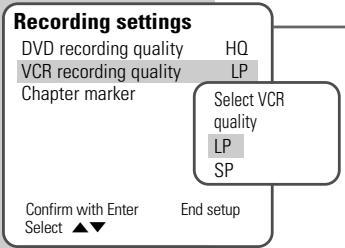
1 Select Chapter marker with or and press ENTER to confirm.
2 Press or to select the marker sequence and ENTER to confirm.
Note:
If you do not want to set markers, repeat the setting and select Off.
VPS/PDC controller for timer recordings
If the timer recording is to be performed using VPS/PDC control, this function must be switched on.
Special functions
Automatic clock setting Off
AV link Off
VPS/PDC
Confirm with Enter End setup Select
Select VPS/PDC
Off
On
1 Press SETUP to open the main menu.
2 Select Defaults<with or
3 Select »Special functions« with «▼ « or « ▲ « and press «ENTER « to confirm.
4 Select VPS/PDC by pressing or and then press ENTER to activate it.
5 Select the function with or and press ENTER to confirm.
6 Press SETUP to finish the setting.
Information about the VPS/PDC system
This system guarantees successful recording if the programme you intend to record is delayed.
Many television stations broadcast a supplementary signal (VPS/PDC signal) which indicates the start and duration of each individual television program. When you are programming the video recorder, it is therefore important to enter the times when it is to switch on and off to the nearest minute.
If television programmes are changed or re-scheduled, then special VPS/PDC times which must be entered instead of the scheduled times are detailed in the television guides.
In the case of television stations which do not transmit a VPS/PDC signal, recording depends solely on the times set for the video recorder to switch on and off. This is regardless of whether you confirm or delete VPS/PDC signal when you program the video recorder.
If you want to record several programs from different television stations, you should decide which should take priority in the case of overlaps due to re-scheduling.
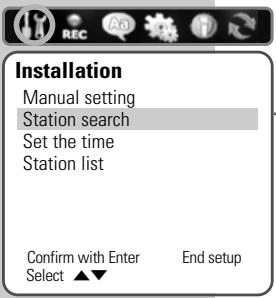
Tuning television channels automatically
1 Press SETUP to open the main menu.
2 Select the « Installation« menu item by pressing « or «.
3 Select Station search with or and press ENTER to confirm.
- The DVD/VCR recorder searches all channels for television stations, then sorts and saves them. The automatic search may take several minutes.
Note:
You can stop the search by pressing SETUP<.
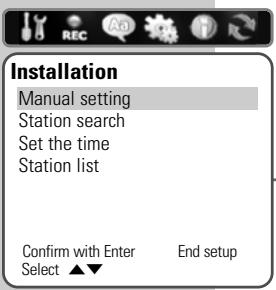
Assigning channel positions manually
If you have information on a new TV station, you can tune to it manually in this menu.
1 Press SETUP to open the main menu.
2 Select the « Installation« menu item by pressing « or «.
3 Select «Manual setting« with «▼« or «▲« and press «ENTER« to confirm.
4 Select «Standard« with «▼« or «▲« and activate with «ENTER«.
Select the colour system with or and press ENTER to confirm.
5 If you want to search by channel or special channel, select «Reception« with «▼ « or « ▲ « and press «ENTER « to confirm.
Select search parameter with or and press ENTER to confirm.
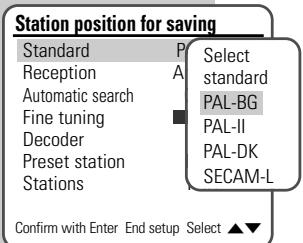
6 To start the search, select Automatic search with or ▲ and start the search with ▲ or ▲.
7 If you wish to fine tune the picture, select «Fine tuning« with « or «.
Tune the picture with or and press ENTER to confirm.
8 To change the name of the TV station, select Stations with or and press ENTER to confirm.
Select a new, free station position with or and confirm with ENTER .
Note:
Set further television stations by repeating steps 4 to 10.
10 Press SETUP to finish the setting.
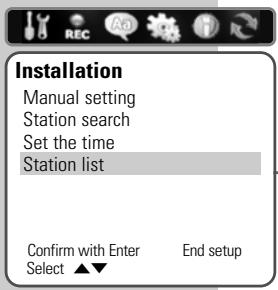
Sorting television stations
You can sort the TV stations in any order you like.
1 Press SETUP to open the main menu.
2 Select the Installation menu item by pressing or
3 Select Station list with or and press ENTER to confirm.
4 Press 或 to select the station to move.
5 Press ENTER to activate the function.
6 Select Move with or and activate with ENTER .
7 Select a new station with or and then press ENTER to confirm.
Note:
To sort the other television channels, repeat steps 4 to 7.
8 Press SETUP to finish the setting.
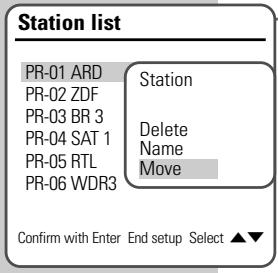
Deleting television stations

You can delete stations that you do not require from the station table.
1 Press SETUP to open the main menu.
2 Select the Installation menu item by pressing or
3 Select Station list with or and press ENTER to confirm.
4 Select the channel you wish to delete with or .
5 Press ENTER to activate the function.
6 Select »Delete« with »▼ « or »▲ « and press »ENTER« to confirm.
Note:
To delete other television stations, by repeating steps 4 to 6.
7 Press SETUP to finish the setting.
Station list
PR-01 ARD
PR-02 ZDF
PR-03 BR 3
PB-04 SAT 1
PB-05 BTI
PR-06 WDR3
Station
Delete
Name
Move
Confirm with Enter End setup Select
Entering station names

Installation
Manual setting
Station search
Set the time
Station list
Confirm with Enter
Select
End setup
Station list
PR-01 ARD
PR-02 ZDF
PR-03 BR 3
PR-04 SAT 1
PR-05 RTL
PR-06 WDR3
Station
Delete
Name
Move
Confirm with Enter End setup Select ▲

You can enter a station name for every television station (max 4 characters).
1 Press SETUP to open the main menu.
2 Select the Installation menu item by pressing or
3 Select Station list with or and press ENTER to confirm.
4 Select the television station to be assigned a name with or
5 Press ENTER to activate the function.
6 Select «Name« with «▼« or «▲« and activate with «ENTER«.
7 Select the input positions with select the letters/ characters with 或 and confirm with ENTER.
Note:
To delete other television stations, by repeating steps 4 to 7.
8 Press SETUP to finish the setting.
Automatically adopting television stations
If this function is activated, the DVD/VCR recorder adopts the setting of the television station from the television. Prerequisite for this, is that the television is equipped with this function.
Special functions
Automatic clock setting
AV link
VPS/PDC
Off
Select AV
Link
Off
On
Confirm with Enter End setup Select

1 Press SETUP to open the main menu.
2 Select Defaults with or
3 Select »Special functions« with «▼ « or « ▲ « and press «ENTER« to confirm.
4 Select AV link with or and confirm with ENTER .
5 Switch on this function with or and press ENTER to confirm.
6 Press SETUP to finish the setting.
Setting the time automatically
If this function is set, the DVD/VCR recorder can automatically update the time in stand-by mode.
This is only possible if preset 1 on the DVD/VCR recorder is occupied by a station with teletext.
Special functions
Automatic clock setting
AV link
VPS/PDC
Select Auto
Clock Status
Off
On
Confirm with Enter End setup Select

1 Press SETUP to open the main menu.
2 Select Defaults with or
3 Select »Special functions« with «▼ « or « ▲ « and press «ENTER « to confirm.
4 Select Automatic clock setting with or and press ENTER to confirm.
5 Select the function with or and press ENTER to confirm.
6 Press SETUP to finish the setting.
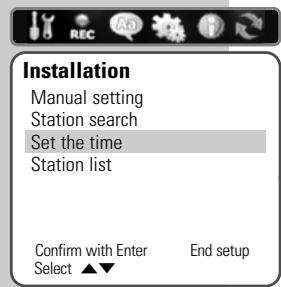
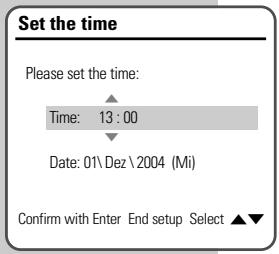
Setting the time and date
If you do not want to use the date and time broadcast by a television station, you can set it manually.
1 Press SETUP to open the main menu.
2 Select the Installation« menu item with » « or » «.
3 Select Set the time with or . Enter the hours with or . Switch to minutes entry with and enter the minutes with or . Confirm your entry with , the input cursor moves to Date .
4 Enter the day with (\gg \gg \gg \gg \gg \gg \gg \gg \gg \gg \gg \gg \gg \gg \gg \gg \gg \gg \gg \gg \gg \gg \gg \gg \gg \gg \gg \gg \gg \gg \gg \gg \gg \gg \gg \gg \gg \gg \gg \gg \gg \gg \gg \gg \gg \gg \gg \gg \gg \gg \gg
5 Press SETUP to finish the setting.
Resetting the DVD/VCR recorder to its original condition
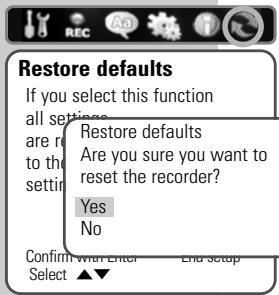
All custom settings are restored to the original status.
You must perform all settings as described in the "Initial installation" chapter.
1 Press SETUP to open the main menu.
2 Select Restore defaults with or and press ENTER to confirm.
3 Select Yes with or and press ENTER to confirm the deletion.
4 Press SETUP to finish the setting.
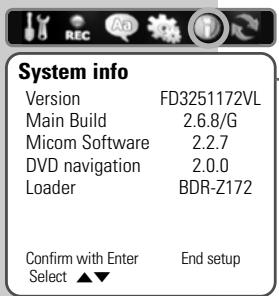
Calling up system information
1 Press SETUP to open the main menu.
2 Select System info with or and press ENTER to confirm.
3 Press SETUP to finish the setting.
CE
Technical data
This product fulfils the European directives 89/336/EEC, 73/23/EEC and 93/68/EEC. This device conforms to the safety regulation DIN EN 60065 (VDE 0860) and therefore the international safety regulation IEC 60065. Never open up the DVD/VCR recorder. The manufacturer will not accept any liability for damage resulting from improper handling.
Mains voltage:
230 V ~, 50/60 Hz
Power consumption:
Operation: approx. 32 W
Switched on 5,8 W
Ambient temperature:
+5°C to +35°C
Playback standard:
PAL, 50 Hz, 625 lines
VCR system:
4 video heads, 2 HiFi heads
Disc recording formats:
DVD + R DVD + RW
Media formats:
DVD video, audio CD,
video CD (VCD 1.0/1.1/2.0), S-Video CD,
CD ROM (DivX*Video, MP3, JPEG, Kodak
Picture CD)
Laser:
Semiconductor laser
Wavelength 650 nm for DVD
Audio format:
Digital: MPEG2/Dolby Digital, PCM, DTS, MPEG3
Analogue: Stereo sound, Dolby Pro Logic
Audio:
Signal: Analogue
DVD: 48/96 kHz 4Hz-22/44 kHz
Video CD: 44.1 kHz 4Hz-20 kHz
Audio CD: 44.1 kHz 4Hz-20 kHz
Signal-to-noise ratio
(at 1 kHz): ≥ 90 dB
Sound volume
(at 1 kHz): ≥ 90 dB
Dimensions and weight:
Dimensions:
W×H×L430×91×354mm
Weight 6.18 kg
CLASS 1 LASER PRODUCT

General information on laser devices
Your system is a CLASS 1 LASER PRODUCT. This means that the laser is designed in such a way as to ensure that the maximum permissible emission value cannot be exceeded under any circumstances.
Caution:
If operating devices or methods other than those specified here are employed, it may lead to dangerous exposure to emissions.
This device emits laser radiation. Because of the danger of eye injuries, the unit may only be opened or serviced by trained personnel.
If settings other than those specified here are employed or other procedures are carried out, this may lead to dangerous radiation exposure.
This product contains components which are covered by certain U.S. patents or for other reasons are considered intellectual property of the Macrovision Corporation and other proprietors. Use of this protected technology must be approved by the Macrovision Company and is only permissible for private presentation at home or for other limited applications, where no special permission has been granted by Macrovision. Reproduction or disassembly of the device is prohibited.
Manufactured with permission from Dolby Laboratories. The "Dolby" label and the double-D logo "D" are trademarks of Dolby Laboratories. Confidential unpublished material.
©1992-1997 Dolby Laboratories, Inc. All rights reserved.
During playback of DTS-coded CDs and DVDs, a high noise level is produced at the analogue stereo outputs. In order to avoid damaging the audio system, always take appropriate preventive measures when connecting the stereo outputs of the DVD/VCR recorder to an amplification system. For DTS Digital Surround playback, an external 5.1-channel DTS Digital Surround decoder must be connected to the digital output (S/PDIF) of the DVD/VCR recorder.
DTS and DTS Digital Out are trademarks of Digital Theater Systems, Inc. All rights reserved.
Troubleshooting
Not every picture or sound problem is caused by a defect in your DVD/VCR recorder. Impairment can also be caused by leads having been accidentally pulled out, damaged DVDs/CDs and worn-out batteries in the remote control.
If the following measures do not do not rectify the problem, consult an authorised dealer.
| Problem | Possible cause/remedy |
| DVD/VCR recorder does not respond not at the recorder | Point the remote control directly at the DVD/VCR-remote control. |
| Remove all obstacles which may interfere with the path of the remote control signal. | |
| Check or replace the remote control batteries. | |
| The disc tray will not open, picture/sound problems | Using the mains switch, switch the DVD/VCR recorder «ON/OFF« off and on again. |
| No picture | Check the video connection. |
| The output signal is set to “Progressive”. Press «I/P« on the remote control to switch to “Interlace”. | |
| Distorted picture | Make sure that there are no fingerprints on the DVD/CD, follow the cleaning instructions on the next page. |
| The DVD/CD cannot be played | Check if the label on the DVD/CD is facing upwards. |
| Clean the DVD/CD. | |
| Check if the DVD/CD is damaged by testing out another DVD/CD. | |
| No sound | Check the audio connections. |
| Try another playback source. | |
| Use an external decoder for DTS audio formats. | |
| No sound at the digital output | Select the “Original” mode, see setting on page 61. |
| Distorted sound from the hi-fi system | Make sure that the audio connections are not connected to the phono input on the amplifier. |
| Recording from TV stations not possible. | Antenna cable not connected, please connect it. |
| The TV station is not tuned on the DVD/VCR recorder. Tune the television station. | |
| Station not transmitting or antenna defective. | |
| Timer recording was not performed. | The DVD recorder was not switched off after timer programming. |
| The VPS/PDC time was incorrectly entered for VPS/PDC-programmed recordings. |
Cleaning discs
Wipe the dirty disc with a cloth from the centre outwards in a straight line.
Do not use any solvents such as benzene, thinners, conventional cleaner or anti-static spray for vinyl records.
Do not use a cleaning CD, as it might damage the laser of your DVD/VCR recorder.
Software information
We wish to point out explicitly that only operating software authorised by GRUNDIG is permissible for the DVD/VCR recorder. This operating software is available from specialist dealers or will be available shortly on the Grundig web sites: www.grundig.com and www.grundig.de. Any instance of operating software from a dubious Internet source being loaded to the device will impair functioning and also, since it is an unauthorised intervention, invalidate any claims under the guarantee.
GRUNDIG will refuse to refund any costs resulting in such cases. Any repair costs in such cases, even those occurring within the guarantee period, are to be paid by the customer.
- GDR 6460 VCR DVD recorder
- Set-up and safety
- Overview
- Connection and preparation
- Initial setup
- Before playback
- Playback
- Playback convenience functions
- CONTENTS
- 34-35
- 36-37
- 38-39
- 40-44
- 45-46
- 47-54
- 55-56
- 57-58
- Playback of a video cassette
- Recordings
- One-touch recording (OTR)
- Delayed recording
- Copying functions
- Managing recording data
- Copying
- Operation with a decoder
- Parental lock
- Audio settings
- Language settings
- Recording settings
- Special settings
- Information
- GDR 6460 VCR DVD/VCR REORDER
- Special features of your DVD/VCR recorder
- Disc formats
- GDR 6460 VCR DVD/VCR RECORDER
- Packing contents
- SETUP AND SAFETY
- The front of the DVD/VCR recorder
- The displays on the DVD/VCR recorder
- DVD & VCR OUT
- COMPONENT OUT
- EURO AV2/DECODER
- Caution:
- The remote control
- Connecting a rooftop antenna or cable feed
- Connecting a television or flat screen
- Note:
- Connecting with a cinch cable (progressive scan)
- Notes:
- Connecting an audio system with analogue two-channel stereo sound
- Connecting a digital multi-channel amplifier or digital two-channel audio system
- Connecting the mains cable
- Putting batteries in the remote control
- Environmental note:
- Switching on the DVD/VCR recorder
- Installation
- Starting initial setup
- Selecting the screen menu language
- Selecting the country (location)
- Selecting the language of the DVD menus
- Selecting the dubbing language
- Selecting the language for the subtitles
- Tuning television stations
- Selecting the screen format of your television set
- Setting the signal type for the video output socket
- Preparation
- Inserting a disc
- Removing discs
- DVD playback
- DVD features
- Special DVD features
- DVD+RW/+R playback
- DVD+RW/+R features
- VCD/S-VCD playback
- S-VCD/VCD features
- Frame search
- Switching PBC (playback control) on and off
- Playback of an MP3 CD
- MP3 CD features
- Picture data CD playback
- JPEG CD features
- KODAK picture CD features
- Playing back a JPEG CD or KODAK Picture CD
- Adjusting the picture display
- Simultaneous playback of JPEG data and MP3 data
- Audio CD playback
- Audio CD features
- Selecting a track in steps (SKIP)
- Fast search
- Selecting titles and chapters
- Selecting titles and chapters step by step
- Selecting titles and chapters directly
- Selecting a section to the minute
- Select title, chapter or function with the playback menu
- Pausing and resuming playback
- Slow motion forward
- Frame-by-frame playback
- Selecting camera angles for scenes
- Enlarging and moving the screen section (zoom)
- Switching the dubbed language or the audio format
- Selecting and displaying subtitles
- Repeating a chapter, a title or a disc
- Repeating a selected section (A-B Repeat)
- Basic playback functions
- Eliminating picture disturbances (unwanted lines)
- Automatic
- Manual
- Freeze-frame
- Fast forward/rewind
- Setting search functions for the VCR unit
- Defaults
- VCR
- Recording options
- Suitable discs for recording
- Unsuitable discs
- Initialising discs
- Recording quality and time (disc mode)
- Preparing for recording
- Recording television programs from the antenna or the cable connection
- Recording television programs from the satellite receiver
- "Finalising" a disc (DVD+R) or "making a disc compatible" (DVD+RW)
- Error messages
- Programming recording by entering the ShowView number*
- ShowView
- Edit timer
- Example
- Timer list
- Programming recording by entering the data for the television programme
- Recording from a satellite receiver:
- Checking, modifying or deleting recording information
- Checking recording data
- Editing recording data
- Deleting recording data
- Copying from a disc to a video cassette
- Copying menu
- Copy to tape
- Copying from a video cassette to disc
- Copy to disc
- Edit disc
- Editing titles
- Opening the editing menu
- Adding chapter markers
- Deleting chapter markers
- Skip chapter
- Creating a new title thumbnail
- Splitting titles in two (only DVD+RW)
- Change title name
- Change title n
- Editing the names of recordings
- Deleting titles (recordings) from the disc
- Erase Title
- Overwriting titles
- Change Disc Name
- Entering the name of the disc
- Erase disc
- Deleting the content of the disc (DVD+RW)
- Lock/unlock disc
- Blocking/unblocking a disc
- Completing a title alteration (DVD+RW only)
- Make compatible
- Finalising a disc (DVD+R only)
- Finalise disc
- Calling up disc information
- Connecting a camcorder
- Connecting a video recorder, DVD player or set-top box
- Recording from external devices
- Recording
- Connection
- Setting the channel position for a decoder
- Recording PAY TV programs
- Authorising the contents of a DVD
- Setting rating level
- Selecting the country code for rating level control
- Parental control settings
- Changing the access code (password)
- Selecting sound settings
- Selecting the digital output
- Setting the dynamic volume range
- Switching on virtual surround sound
- Finishing the settings
- Languages
- Selecting recording quality for disc recordings
- Selecting recording quality for VCR recordings
- VPS/PDC controller for timer recordings
- Special functions
- Information about the VPS/PDC system
- Tuning television channels automatically
- Assigning channel positions manually
- Sorting television stations
- Deleting television stations
- Station list
- Entering station names
- Automatically adopting television stations
- Setting the time automatically
- Setting the time and date
- Resetting the DVD/VCR recorder to its original condition
- Calling up system information
- Technical data
- Mains voltage:
- Power consumption:
- Ambient temperature:
- Playback standard:
- VCR system:
- Disc recording formats:
- Media formats:
- Laser:
- Audio format:
- Audio:
- Dimensions and weight:
- CLASS 1 LASER PRODUCT
- General information on laser devices
- Troubleshooting
- Cleaning discs
- Software information
Brand : GRUNDIG
Model : GDR 6460 VCR SILVER
Category : VCR